How to Dual Stream to YouTube (Desktop + Mobile Vertical)
Reach your desktop audience and the YouTube Shorts live feed from a single broadcast. Here is the full setup — stream keys, encoder settings, and every gotcha the official docs bury.
Why Dual Stream Is A Game Changer
YouTube viewers are split. Half scroll Shorts on their phone, half watch Live on desktop or TV. If you only push one aspect ratio you are cutting your potential reach in half before you hit go live.
Dual stream solves that. One broadcast, one URL, one notification — but viewers on mobile get a native 9:16 vertical feed inside the Shorts live experience, while desktop, tablet and TV viewers get the full 16:9 horizontal version. Chat is shared across both. It is the single highest-leverage YouTube change in years.
What YouTube Dual Stream Actually Is
Dual stream is a feature inside YouTube Studio → Live Control Room that provisions a second stream key alongside your normal horizontal one. The horizontal key handles your main 1920x1080 feed. The vertical key handles a 1080x1920 feed that YouTube routes into the Shorts live surface.
There are two ways to drive the vertical feed:
- Auto mode — YouTube generates the 9:16 feed from your 16:9 source. Easiest path, no extra encoder setup. Good when you just want the reach without building a separate mobile scene.
- Encoder mode — you push a dedicated 9:16 stream to the second RTMPS key from your streaming app. More work, but you get full creative control over the vertical layout and composition.
Encoder mode is the one worth the effort. It lets you frame faces, text and gameplay specifically for a phone viewer — which looks ten times better than a centre-cropped desktop scene.
Step-By-Step: Set Up Dual Stream
The whole flow lives inside YouTube Studio → Create → Go live. You will generate a separate vertical stream key and then flip Dual stream on.
- 1
Open Go Live From YouTube
From the YouTube home page, click the Create button in the top right and pick Go live. This drops you straight into the Live Control Room where every Dual stream setting lives.
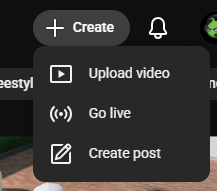
Step 1 — Create → Go live from the YouTube home page. - 2
Create A New Stream Key
In the Live Control Room, open the stream settings panel and choose Create new stream key. This is the one you will dedicate to your vertical 9:16 feed — keep your existing default key alone for the horizontal output.
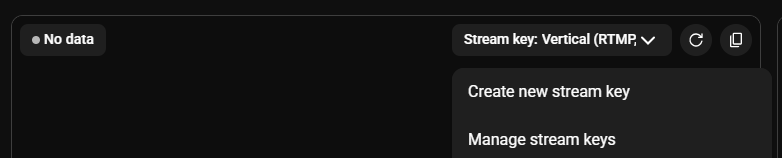
Step 2 — Generate a fresh stream key for the vertical feed. - 3
Name And Save The Stream Key
Give the new key a clear name like "Vertical — 1080x1920" so future-you knows which output it drives. Save it. The key appears in your stream key dropdown and stays there for every future broadcast.
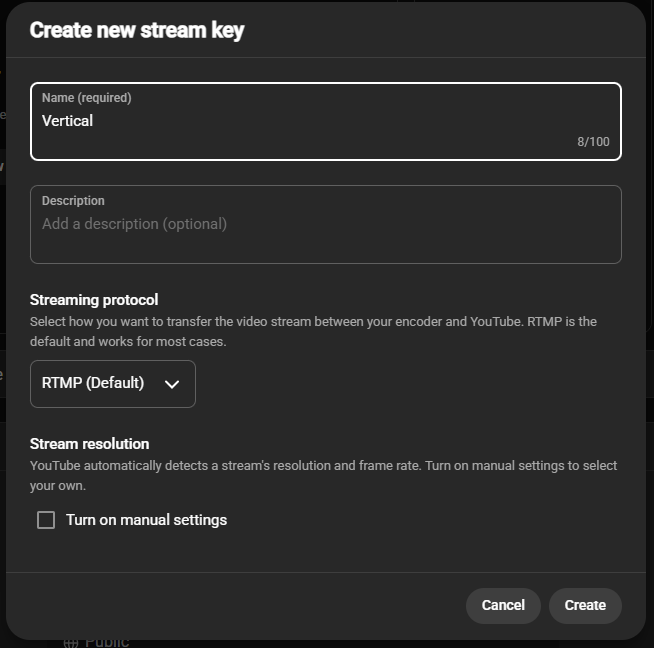
Step 3 — Label the new key so it is obvious which feed it powers. - 4
Copy The Stream Key
Reveal and copy the key. Paste it into the RTMPS stream key field of the vertical output in your streaming app — this is where StreamUps Studio, OBS or any encoder will send the 9:16 feed.
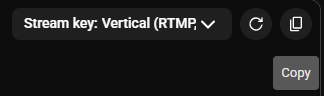
Step 4 — Copy the key into your encoder's vertical output settings. - 5
Enable Dual Stream
Back in the stream settings panel, toggle Dual stream on and pick either Auto (YouTube generates the vertical feed from your horizontal one) or Encoder (you push the vertical feed yourself using the key from step 4). Hit Go live and both outputs go public at the same time.
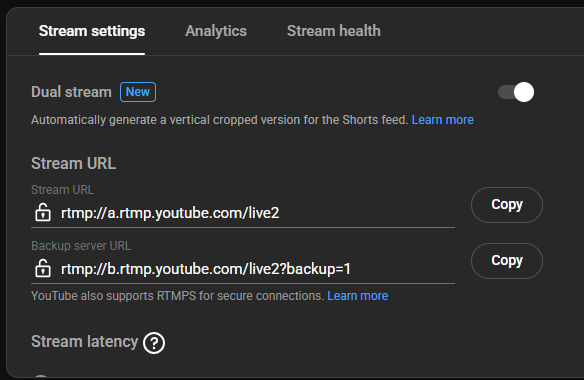
Step 5 — Flip Dual stream on and choose Auto or Encoder mode.
How Your Stream Reaches The Shorts Live Feed
Nothing else to do. YouTube classifies any live stream with a 9:16 aspect ratio as eligible for the Shorts live feed, and pushes it there automatically. No title tag, no hashtag, no extra checkbox.
Mobile viewers swiping through Shorts will see your live tile appear in the feed, and tapping it drops them straight into your vertical stream. Desktop and tablet viewers get the horizontal feed from the same event — they never see the vertical one.
Scheduled streams and Premieres do not currently appear in the vertical Shorts live feed — only streams you start live from the control room. Keep that in mind if you normally pre-schedule.
Recommended Encoder Settings
YouTube does not publish a separate bitrate table for the vertical feed — treat it like another 1080p stream. Use H.264, CBR, and a 2-second keyframe interval on both outputs.
| Output | Resolution | Frame Rate | Bitrate |
|---|---|---|---|
| Horizontal | 1920 x 1080 | 30 fps | 4.5 – 9 Mbps |
| Horizontal | 1920 x 1080 | 60 fps | 6 – 12 Mbps |
| Vertical | 1080 x 1920 | 30 fps | 4.5 – 9 Mbps |
| Vertical | 1080 x 1920 | 60 fps | 6 – 12 Mbps |
If your GPU is being pushed hard running two encodes, drop the vertical feed to 30 fps and keep horizontal at 60 — Shorts viewers are on phones and will barely notice, while your main audience gets the smoother feed.
Limitations Worth Knowing
YouTube has been rolling Dual stream out through 2026, so a handful of edges are still rough:
- Dual stream cannot be disabled once the stream has started — decide before you hit Go live.
- Scheduled streams and Premieres do not surface in the Shorts live feed. Start the stream live from the control room instead.
- The vertical feed is phone-only. Tablets and desktops always see the horizontal version.
- Chat is shared between both feeds — you cannot segment mobile vs desktop viewers into separate rooms.
- Vertical-only analytics (views, watch time, retention) are delayed by about 24 hours after the stream ends; during the stream you see combined metrics.
- Encoder mode for the vertical key is still rolling out gradually — if you do not see it, Auto mode is available to almost every live-enabled channel.
Build Desktop And Mobile Scenes In One App
StreamUps Studio is built for exactly this workflow. Create one scene collection for your 16:9 desktop layout, another for your 9:16 vertical layout, and push both to YouTube from a single app — no juggling two copies of OBS, no second PC, no cloud relay fees.
Two aspect ratios. One broadcast. Zero extra software.
Related Resources
Ready to Multi-Stream?
Start broadcasting to multiple platforms today. Free tier available with no credit card required.