How to Stream on YouTube in 2026: Complete Setup Guide
YouTube has made significant changes to how streamers go live in 2026. From a redesigned Studio interface to the game-changing dual streaming feature that broadcasts to both desktop and mobile viewers simultaneously, here's everything you need to know to start streaming on YouTube this year.
Why Stream on YouTube in 2026?
YouTube remains one of the most powerful platforms for live streaming, with over 30% of daily logged-in users watching live content. But 2026 has brought some major advantages that make it more appealing than ever:
- Massive discovery potential through YouTube's recommendation algorithm and search
- Automatic VOD uploads mean your streams live forever as searchable content
- Robust monetization with Super Chats, memberships, and the new side-by-side ads
- The new dual-format streaming reaches both desktop viewers AND the massive Shorts audience
Go Live from YouTube Studio
Head to studio.youtube.com and sign in to your channel. Click the 'Create' button in the top right corner and select 'Go Live.' If this is your first time, you'll need to verify your phone number and wait 24 hours before your first stream.
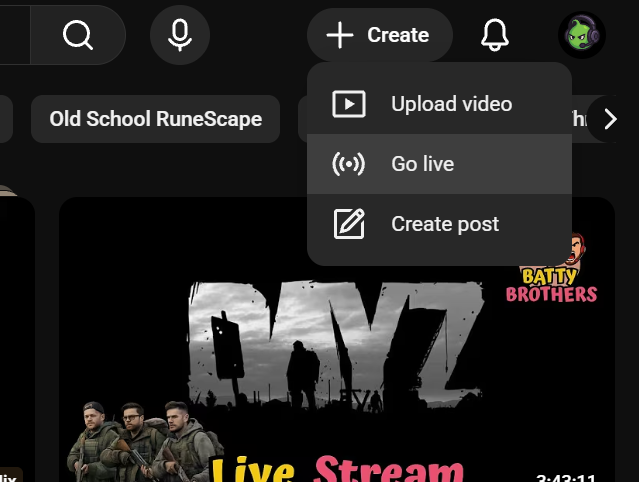
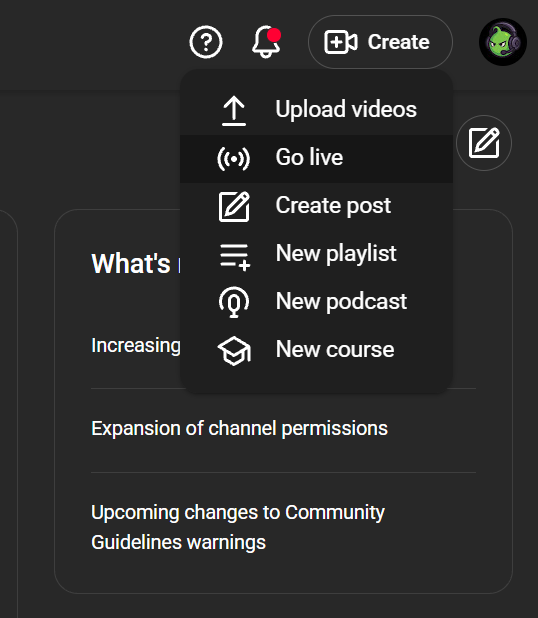
Pro Tip: If you haven't streamed before, enable live streaming now so the 24-hour waiting period is complete when you're ready to go live.
Find and Copy Your Stream Key
Your stream key is what connects your streaming software (like OBS or Streamlabs) to your YouTube channel. It's essentially your stream's password and address combined.
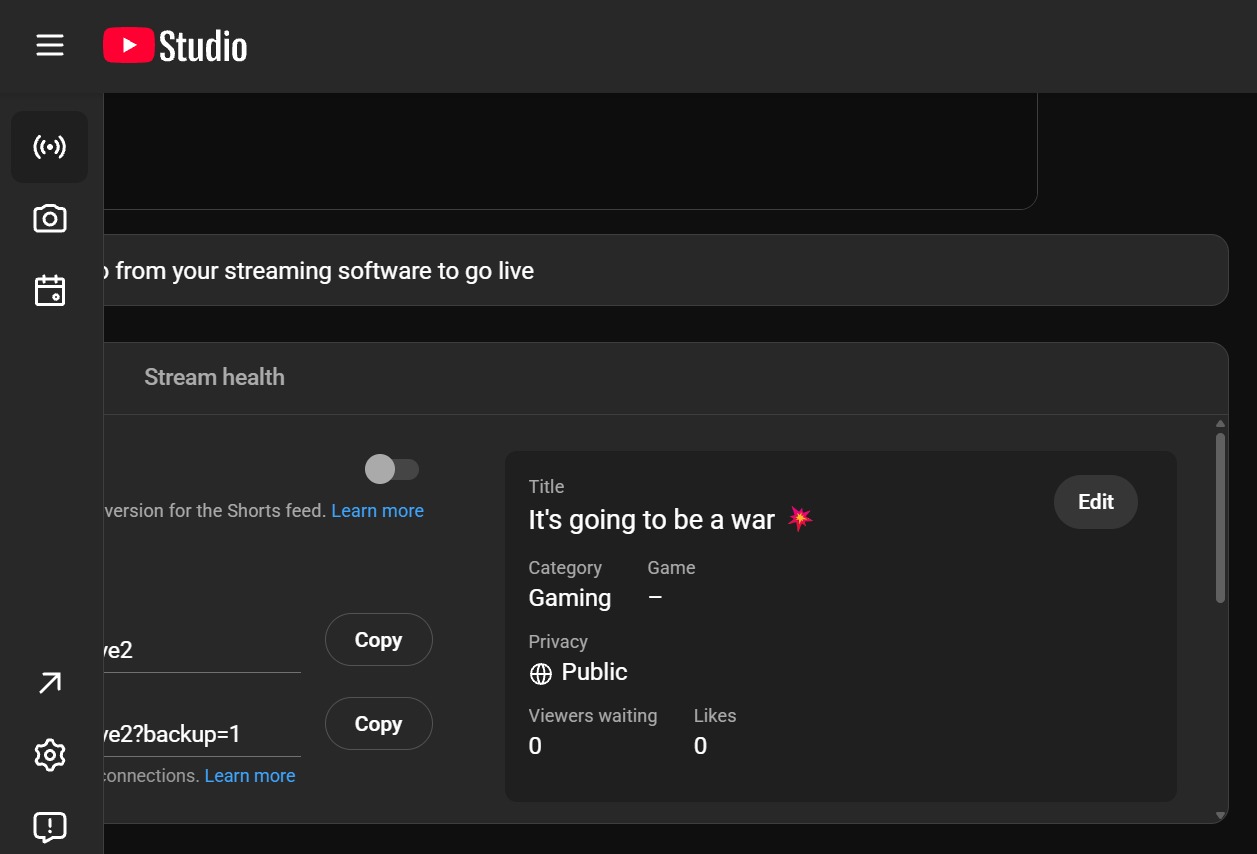
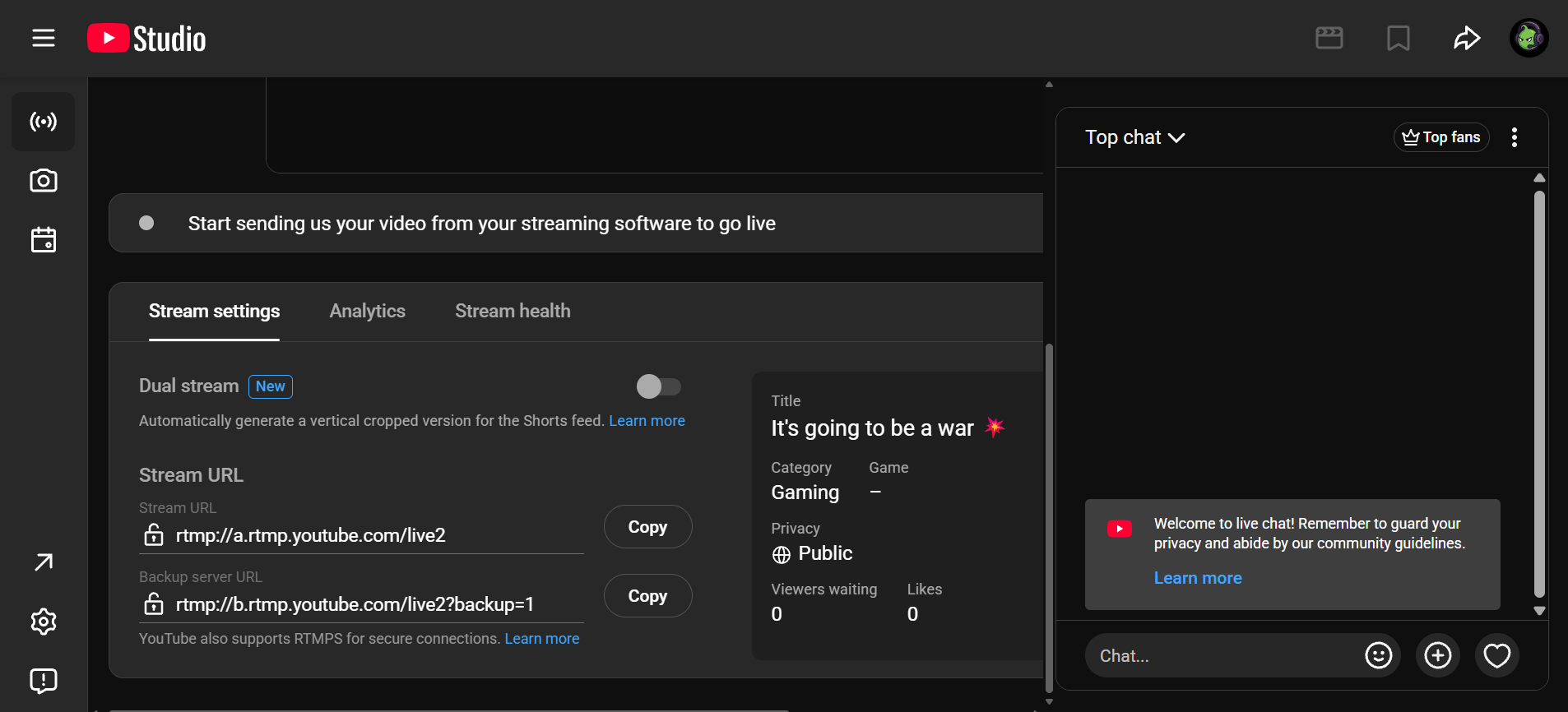
- In the Live Control Room, click on 'Stream' in the left sidebar
- Look for 'Stream Settings' and find your stream key
- Click 'Copy' to copy it—never share this publicly!
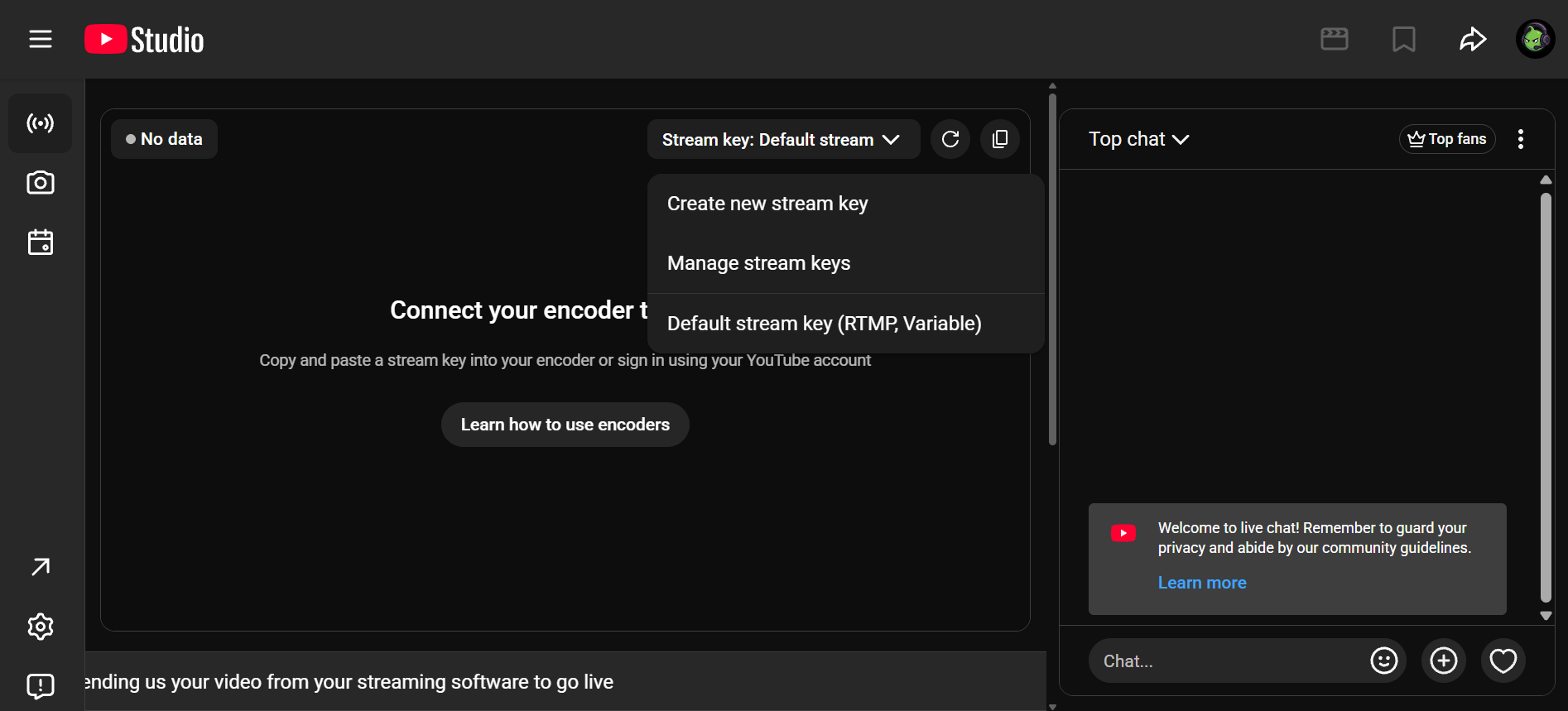
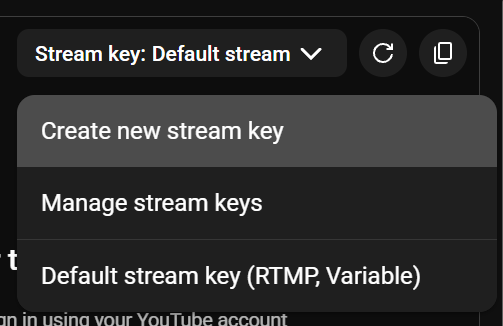
Security Warning: Never share your stream key publicly. Anyone with access can broadcast from your account. If you accidentally expose it, reset it immediately from the same settings panel.
Configure Dual Streaming (NEW in 2026)
This is the biggest change to YouTube Live in years. Dual streaming lets you broadcast in both 16:9 landscape (for desktop, TV, and tablet viewers) and 9:16 portrait (for mobile phone viewers) simultaneously from a single camera setup. Your vertical stream appears in the YouTube Shorts feed, dramatically increasing your discoverability.
How Dual Streaming Works:
- ✓ YouTube's AI automatically creates a vertical crop of your horizontal stream
- ✓ Both formats share a single unified chat—no audience fragmentation
- ✓ Mobile viewers see your stream in their Shorts feed alongside short videos
- ✓ More than 30% of YouTube viewers now consume content in vertical format
Optimize Your Title and Hashtags
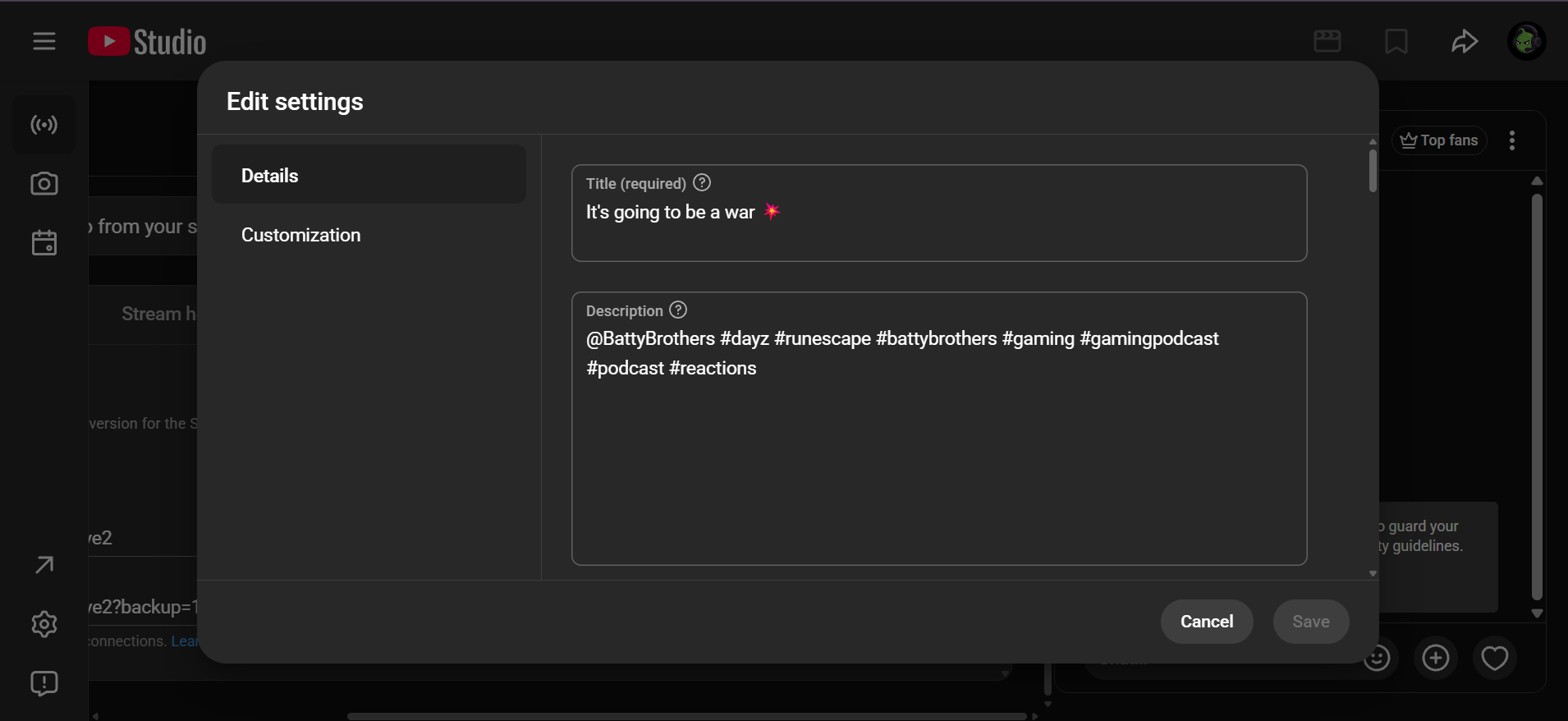
Your stream's discoverability depends heavily on your title and hashtags. YouTube's algorithm uses these to determine who sees your stream in recommendations and search results.
- Include searchable keywords in your title (game name, topic, event)
- Use 3-5 relevant hashtags—they appear above your title and help categorization
- Add your stream schedule if you go live regularly (e.g., 'Monday Night Gaming')
Technical Requirements
Recommended Bitrates
- 720p: 2,500 - 5,000 kbps video bitrate
- 1080p: 4,500 - 9,000 kbps video bitrate
- Audio: 160 - 320 kbps
Requirements
- Phone verification (one-time)
- No live stream restrictions in last 90 days
- Upload speed 20% higher than your total bitrate
Pro Tips for 2026
Use Rehearsal Mode
YouTube's new Rehearsal Mode lets you test your entire setup privately before going public. Test your mic, lighting, and scenes without notifying subscribers.
Schedule Your Streams
Scheduling streams in advance notifies your subscribers and creates anticipation. It also gives YouTube's algorithm time to recommend your upcoming stream.
Engage with Chat Early
The first 30 seconds determine if viewers stay. Start with energy, acknowledge chatters by name, and have something happening on screen immediately.
Start Streaming Today
YouTube's 2026 updates make it easier than ever to reach audiences on any device. The dual streaming feature alone can significantly expand your reach by tapping into the massive mobile-first viewer base.
Whether you're a new streamer looking to build your first audience or an established creator expanding to YouTube, the platform's discoverability and VOD benefits make it an essential part of any streaming strategy.
Related Resources
Simplify Your Multi-Platform Streaming
Manage chat from Twitch, Kick, and soon YouTube in one unified control panel. StreamUps gives you the tools to focus on content, not platform juggling.