A preset per stream type
A saved bundle for each kind of stream you run, so going live is selecting one rather than filling in four forms. Just Chatting, the game you grind, collabs — three presets covers most people for months.
Four platforms, four title fields, every single stream. Save a preset for the kind of stream you run, let AI draft the copy, and push it to Twitch, Kick, YouTube and Rumble in one action — before you go live.
Setting your stream's metadata by hand is not hard. It is just tedious enough, often enough, that it quietly stops happening. And the cost of it not happening is bigger than the cost of doing it.
Four tabs, four category pickers, four description boxes, before every broadcast. Two minutes that arrive at the exact moment you are trying to start.
Because it is tedious it gets skipped, and a stale title is what the algorithm sees. Reusing yesterday's title is a discovery cost you pay silently on every stream.
Do it by hand four times and the four end up subtly different. The same stream becomes discoverable under different terms depending on where a viewer happens to find you — which is the one nobody notices and the one that compounds.
This is a problem that only exists because you broadcast to more than one place. If you are not multistreaming yet, that is the thing to read first — Stream Info is what makes the fourth platform stop feeling like four times the admin.
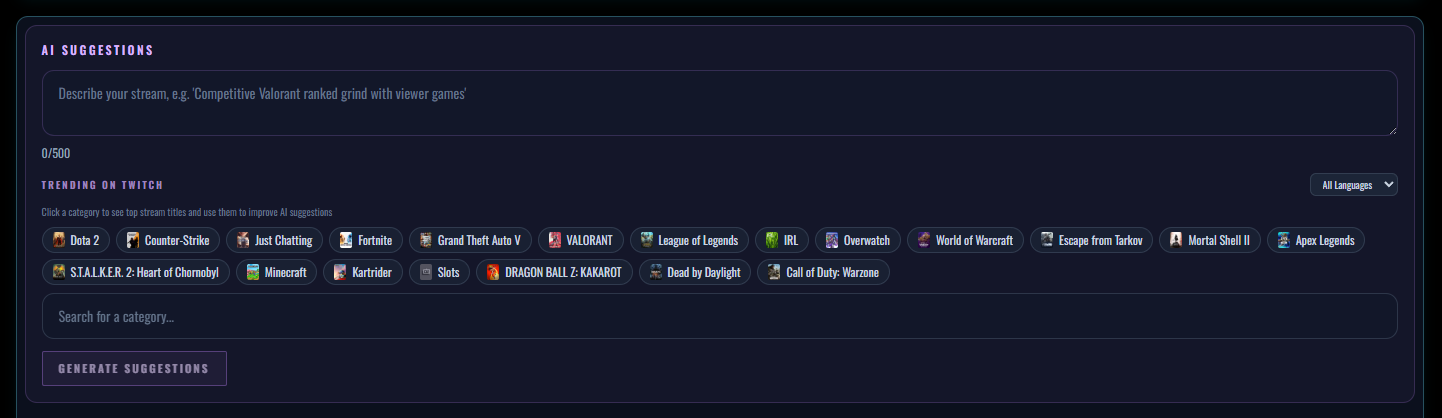
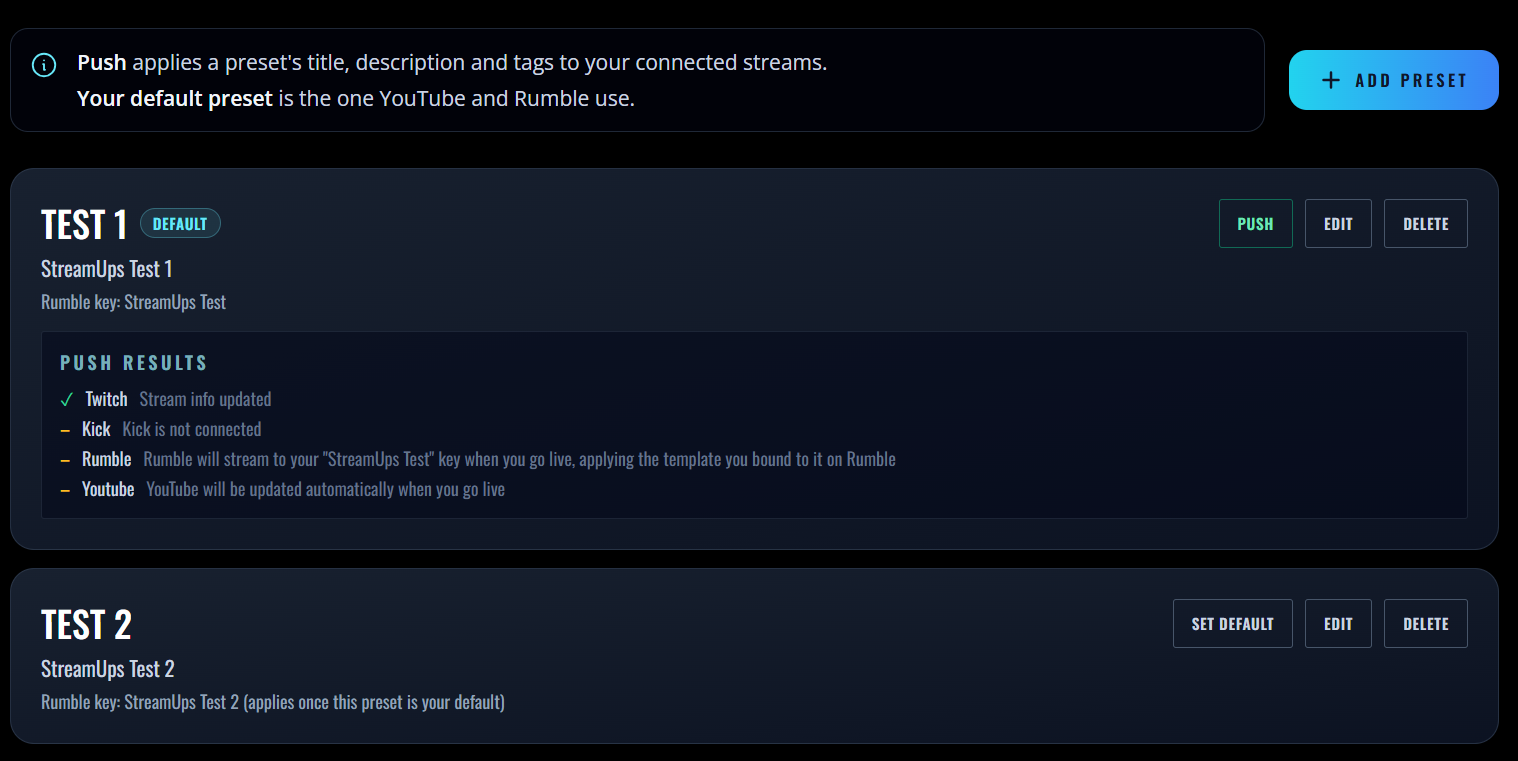
Stream Info lets you save a preset for each kind of stream you run — title, description, category and tags per platform — write them with AI, and push them to Twitch, Kick, YouTube and Rumble in one action instead of setting them platform by platform.
A saved bundle for each kind of stream you run, so going live is selecting one rather than filling in four forms. Just Chatting, the game you grind, collabs — three presets covers most people for months.
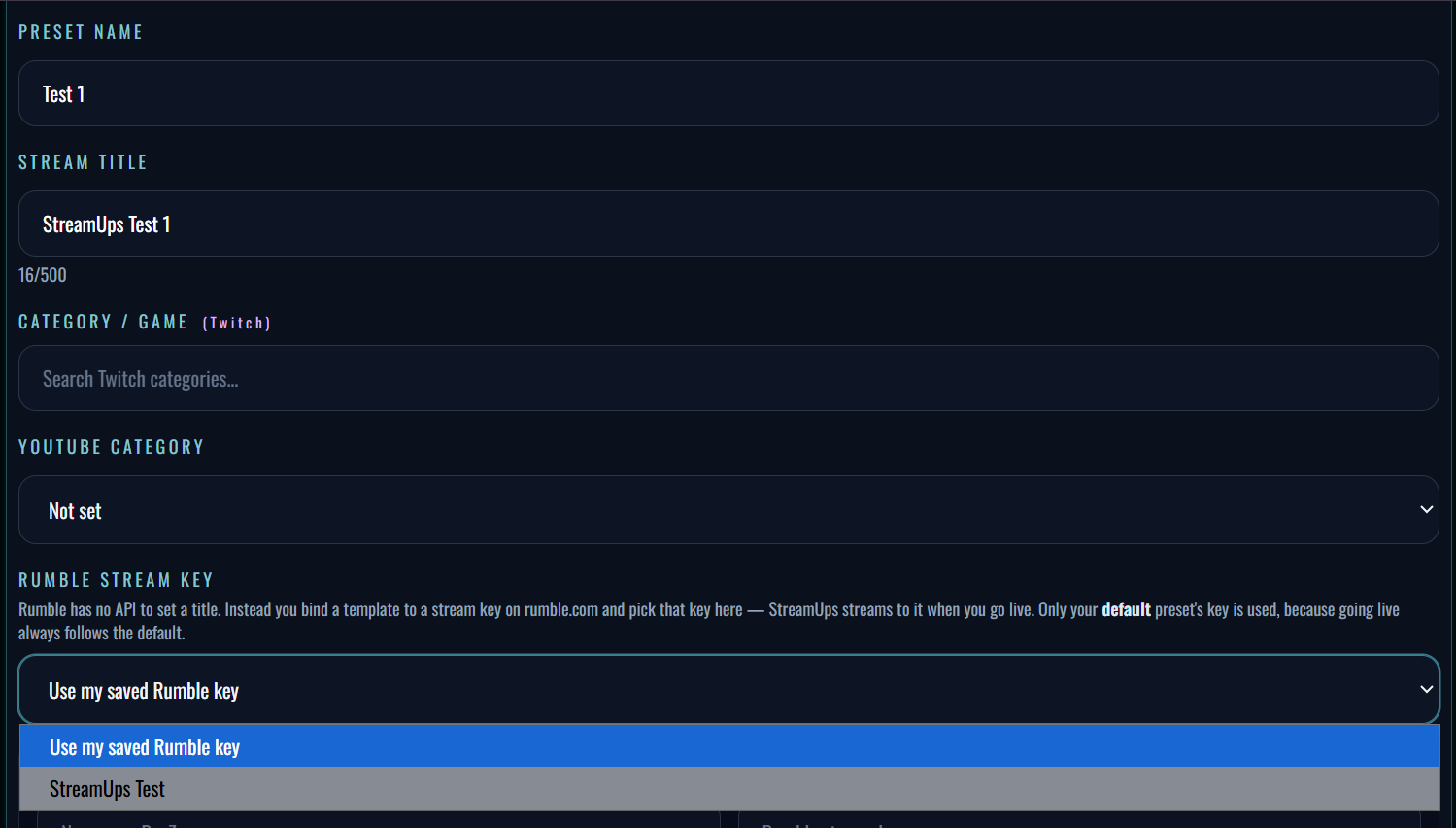
Title, description, category and tags set individually where platforms differ, because each one maintains its own category list and a game named one way on Twitch is not always named the same on Kick.
Rumble attaches metadata to the stream key, so a preset selects which Rumble key to broadcast to rather than sending new text. New keys can be added without leaving the panel.
A single action pushes the preset to every connected platform, so your titles and categories are already correct before you press start in OBS rather than after the first viewers arrive.
For the click-by-click version with screenshots, see how to update every stream title at once.
Describe the stream the way you would describe it to a friend — "ranked climb, third night running, close to the promo" — and you get a title, a description and a set of hashtags back. Accept them, edit them, or regenerate until something fits.
You can also pull in popular streams from a category as a reference point: what is working right now, used as a read on tone and phrasing rather than something to copy. A title that looks like everyone else's is not a discovery advantage.
None of it is compulsory. Type every field yourself and the presets and the push work identically — the AI is a starting point, not a requirement. If you want to see the output quality before connecting any accounts, the free stream title tool runs the same suggestions with no signup; it just stops at the copy button. There is more on why this moves the needle in our write-up on AI stream metadata.
Platforms do not agree on how stream metadata works, and pretending otherwise would just produce surprises later. Here is exactly what each one receives.
| Platform | Receives from a preset | Condition |
|---|---|---|
| Twitch | Title, category, tags | Account connected. Applies whether or not you broadcast through StreamUps |
| Kick | Title, category | Account connected. Category is Kick's own list, not Twitch's |
| YouTube | Title, description, tags | Account connected, and the stream must run through StreamUps — the integration creates the broadcast |
| Rumble | The selected stream key | Title and category come from that key's template, edited on Rumble |
| TikTok | Nothing | Chat source only — StreamUps does not broadcast to TikTok |
StreamUps does not edit an existing YouTube broadcast — the integration creates the broadcast, with your title, description and tags already on it. So YouTube metadata applies when your stream runs through StreamUps. Go live straight from OBS to YouTube and there is no StreamUps-created broadcast to carry the preset. The upside is that you skip YouTube Studio entirely, because the event is made for you when you go live.
Rumble attaches stream metadata to the stream key rather than accepting it live. A Rumble template holds the title, description, tags and category, and a static key has a template assigned to it — so a preset picks which Rumble key to broadcast to rather than sending Rumble new text. Change a preset's title and Twitch, Kick and YouTube update while Rumble keeps its template's title until you edit it on Rumble. Build one template-and-key pair per stream type and the model works in your favour.
Free tier, no watermark, no credit card required.