How to Use AI to Update Every Stream Title, Description and Hashtag at Once
Four platforms, four title fields, every single stream. Most people give up and reuse yesterday's title, which quietly costs discovery every time. Here is how to set it once, let AI draft it, and push it everywhere in one action.
What You're Building
Open Stream Info in StreamUps, create a preset for the kind of stream you run, set the title, description and category for Twitch, Kick and YouTube, pick the Rumble stream key that matches, then press Apply. Every connected platform updates at once, before you go live.
Two notes on scope before you start, because both save confusion later. This covers the platforms StreamUps broadcasts to — Twitch, Kick, YouTube and Rumble; TikTok is a chat source rather than a destination, so it never receives stream metadata and does not appear anywhere in this flow. And YouTube has a condition the others do not: your stream has to run through StreamUps for its metadata to apply, because the integration creates the YouTube broadcast rather than editing one. The next section covers that properly.
First: Connect the Platforms You Want to Update
StreamUps can only set a title on a platform it has permission to speak to. So before any of this works, the accounts have to be connected — and that is the same two-click setup wizard that connects your chats, so if you have already merged your chats you have done this and can skip ahead.
- 1
Open the setup wizard
If you did not land on it straight after signing up, the Quick Startup button in your StreamUps dashboard opens the same guided setup from anywhere. This is the one place that connects platforms — there is no separate screen for chat and for stream metadata.
Connect step 1 — Quick Startup opens the setup wizard. - 2
Select and authorise your platforms
Tick Twitch, Kick and YouTube, then sign in to each one when prompted. That authorisation is what gives StreamUps permission to set your title and category later — without it, applying a preset has nothing to apply to. You can connect one now and add the rest whenever.
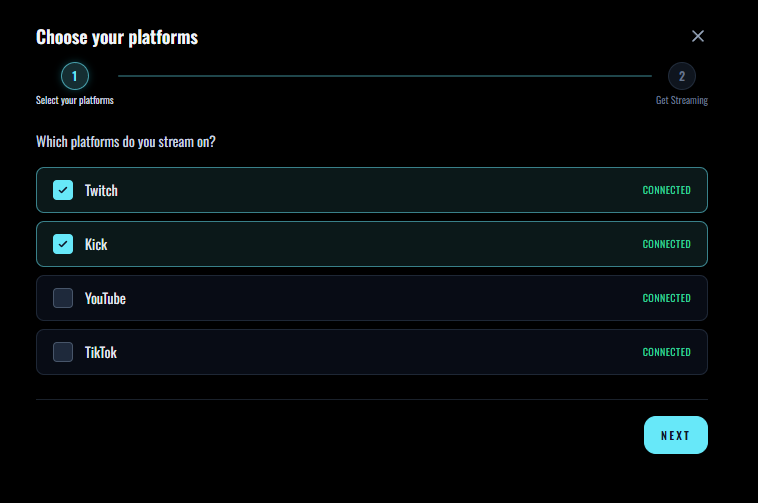
Connect step 2 — Authorising each platform is what allows StreamUps to set its title.
Connecting is the same for all three, but what happens afterwards is not. Each platform sets its title in its own way, and one of them has a condition attached.
Twitch and Kick — connect and you're done
Both accept live metadata over their APIs, so once the account is connected StreamUps can set your title and category whenever you apply a preset. It works whether you broadcast through StreamUps or straight from OBS to the platform.
YouTube — connect, and route the stream through StreamUps
YouTube needs the same connection, plus one condition worth knowing before you rely on it. StreamUps does not edit an existing YouTube broadcast — the integration creates the broadcast for you, with your title, description and tags on it. That means your stream has to run through StreamUps for YouTube metadata to apply at all.
Put plainly: if you go live straight from OBS to YouTube, StreamUps never creates that broadcast, so there is nothing for it to title. Multistream through us and it works — and you get to skip YouTube Studio entirely, because the event is made for you when you go live.
Rumble — a template and stream key first
Rumble is not connected through the wizard. It needs a template and a static stream key built on Rumble first, which the Rumble multistream tutorial walks through. If you are not using Rumble, skip every mention of it below and nothing else changes.
You will also need a free StreamUps account — no credit card at signup. If you only want to see what the AI produces before committing to anything, the free stream title tool runs with no account at all; it just will not push anything anywhere.
Create Your Free AccountStep-By-Step: Build a Preset and Push It
- 1
Open your multistream targets
Start on the page listing the platforms you broadcast to. Everything below is reached from here, and if you have already saved a Rumble stream key you will see Rumble sitting in the list alongside the others — it adds itself.
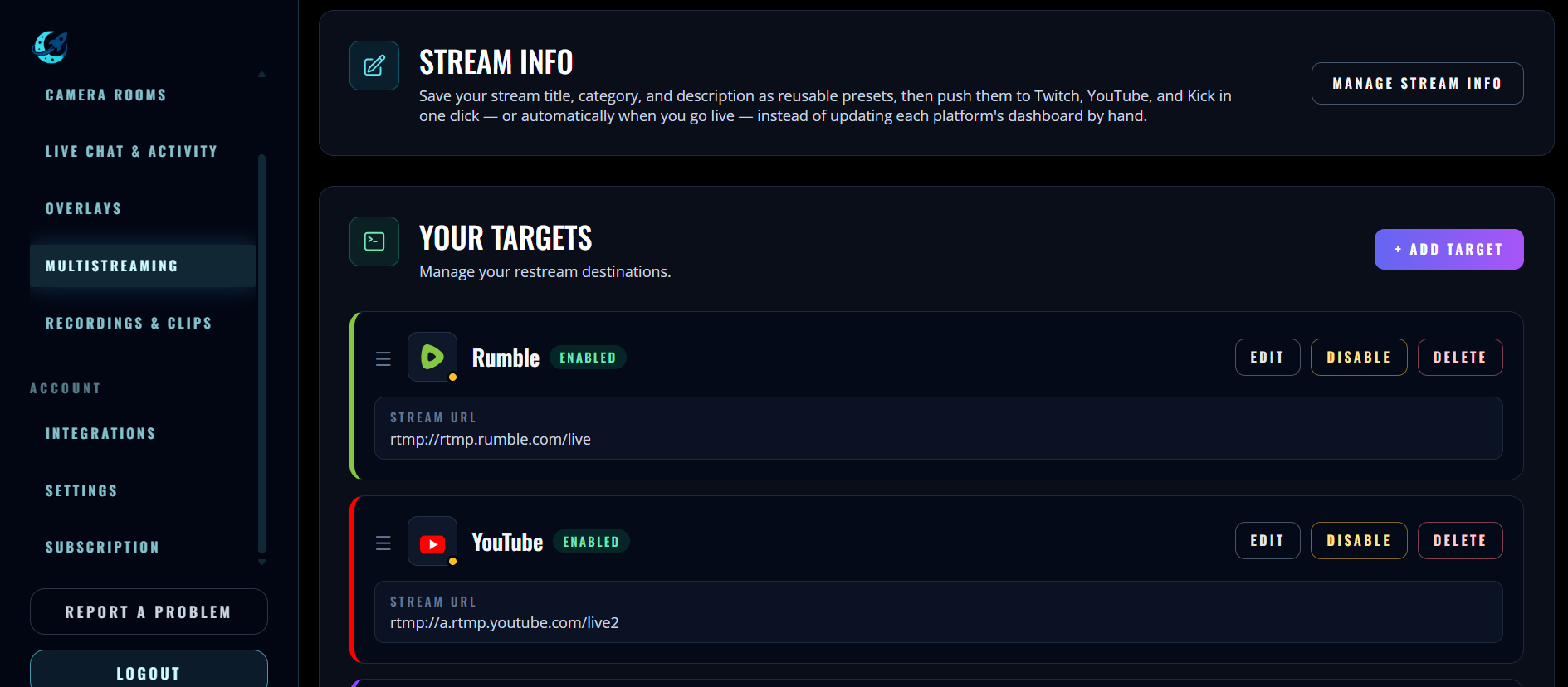
Step 1 — Stream Info is reached from your multistream targets. - 2
Open Stream Info
Stream Info is where your presets live — one saved bundle of metadata per kind of stream you run. If this is your first visit it will be empty, and you are about to create the first one.
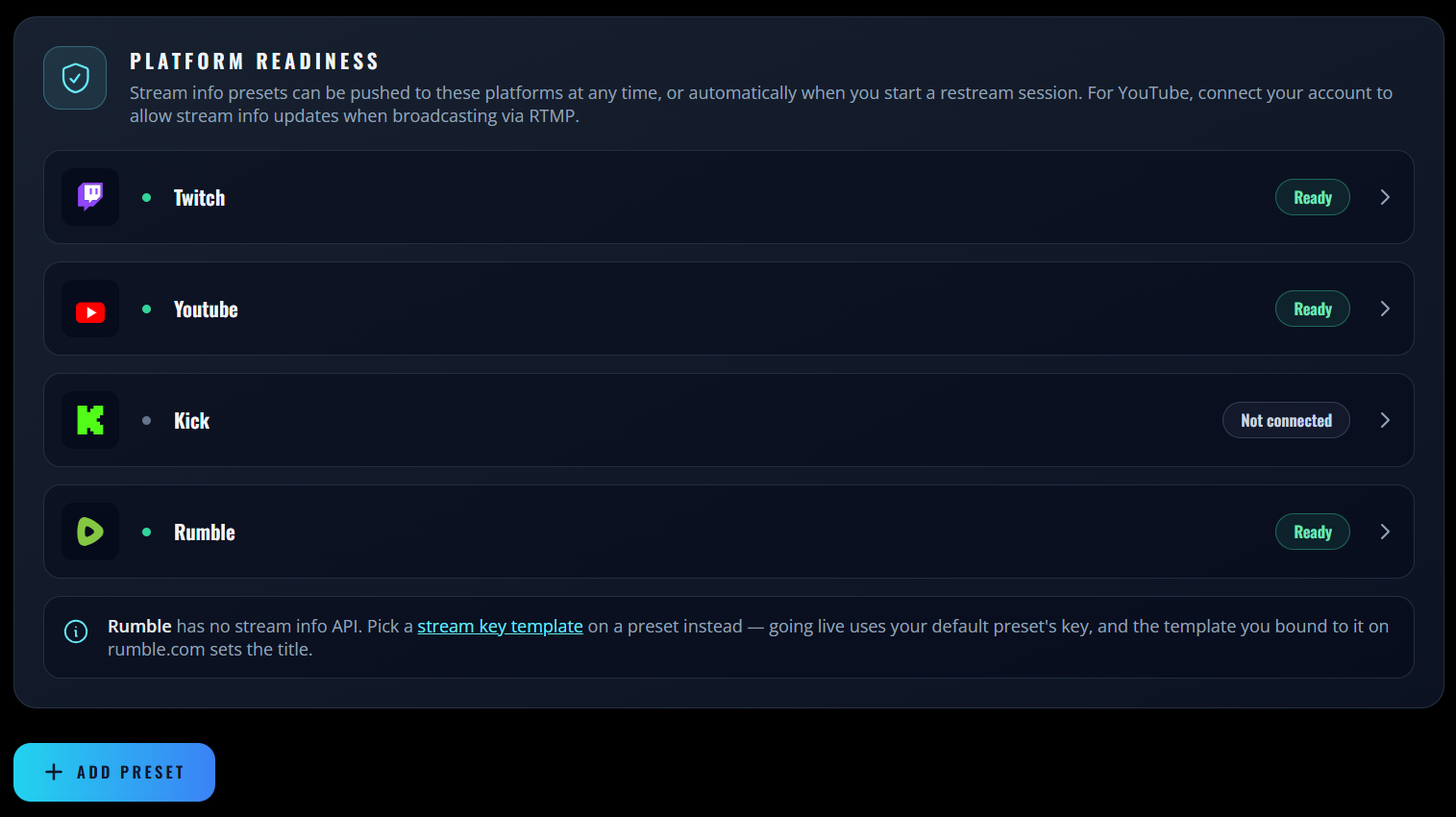
Step 2 — Stream Info holds one preset per stream type. - 3
Let AI draft the title, description and hashtags
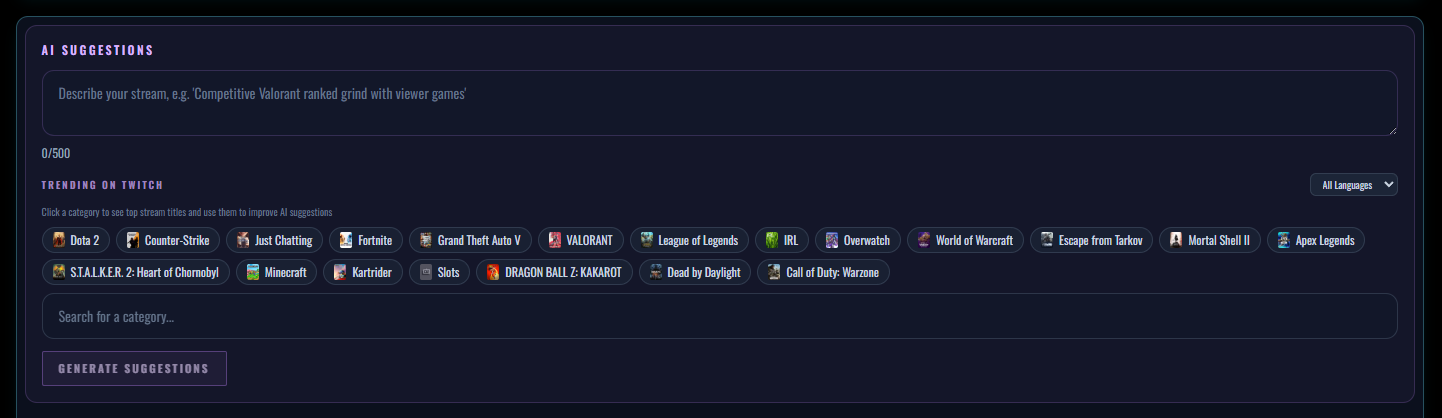
Describe the stream in plain language and the AI returns a title, a description and a set of hashtags. Accept them, edit them, or regenerate until something fits. This step is entirely optional — you can type every field yourself and the rest of the flow is identical — but a draft beats a blank field, and editing a suggestion is faster than writing from nothing.
Step 3 — Describe the stream, and let the AI draft the copy. - 4
Set the per-platform fields and pick your Rumble key
Title, description and category are set individually for Kick, Twitch and YouTube, because each platform maintains its own category list and a game named one way on one is not always named the same way on another. In the same panel there is a selector for which Rumble stream key this preset should broadcast to, with a default already set if you only run one.
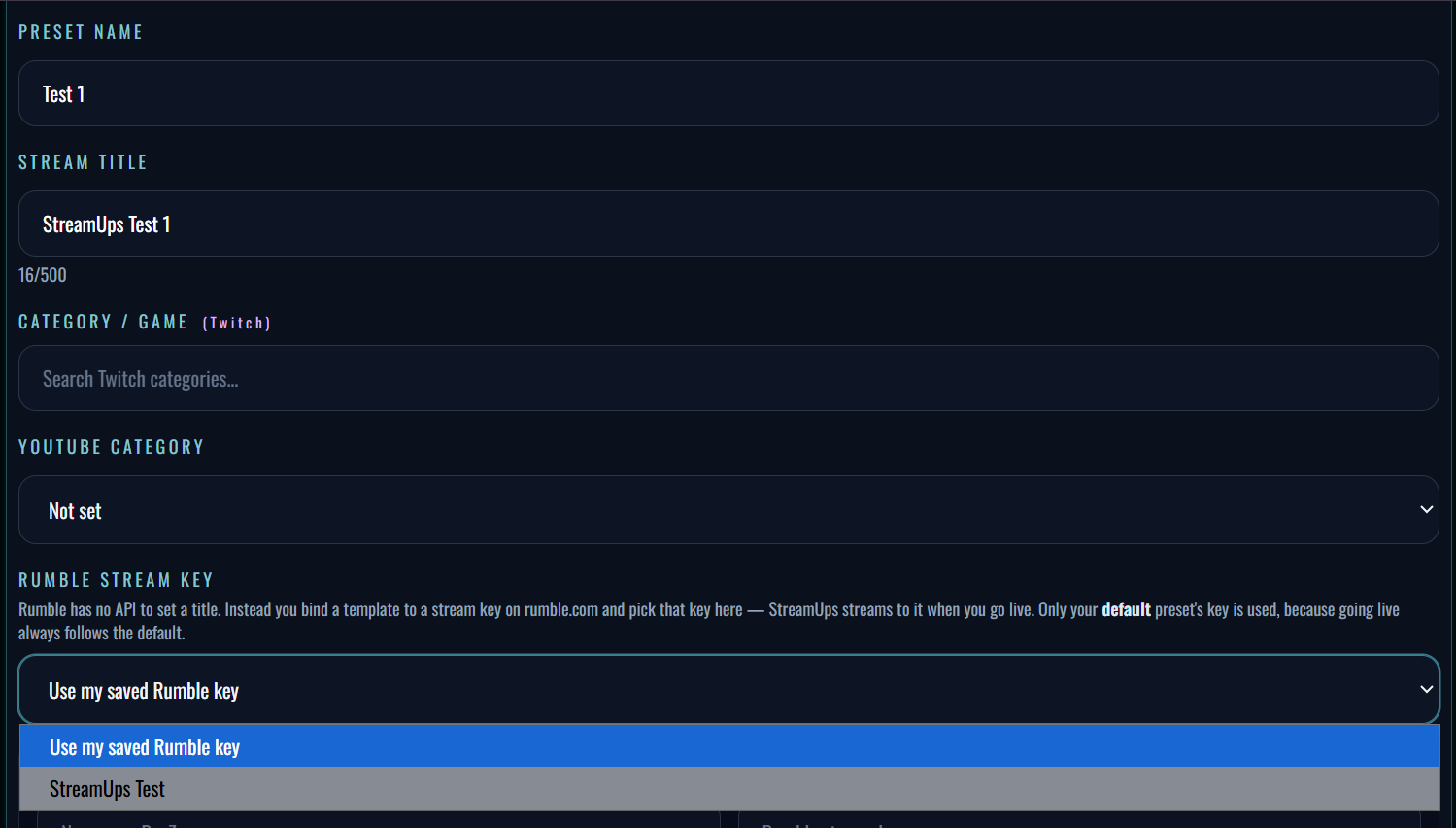
Step 4 — Per-platform fields, plus the Rumble key this preset uses. - 5
Add another Rumble key if you need one
If you have built more Rumble templates and keys since setting this up, you can add them here without leaving the page. Handy when you create a new stream type and want a preset for it in the same sitting rather than going back to Rumble first.
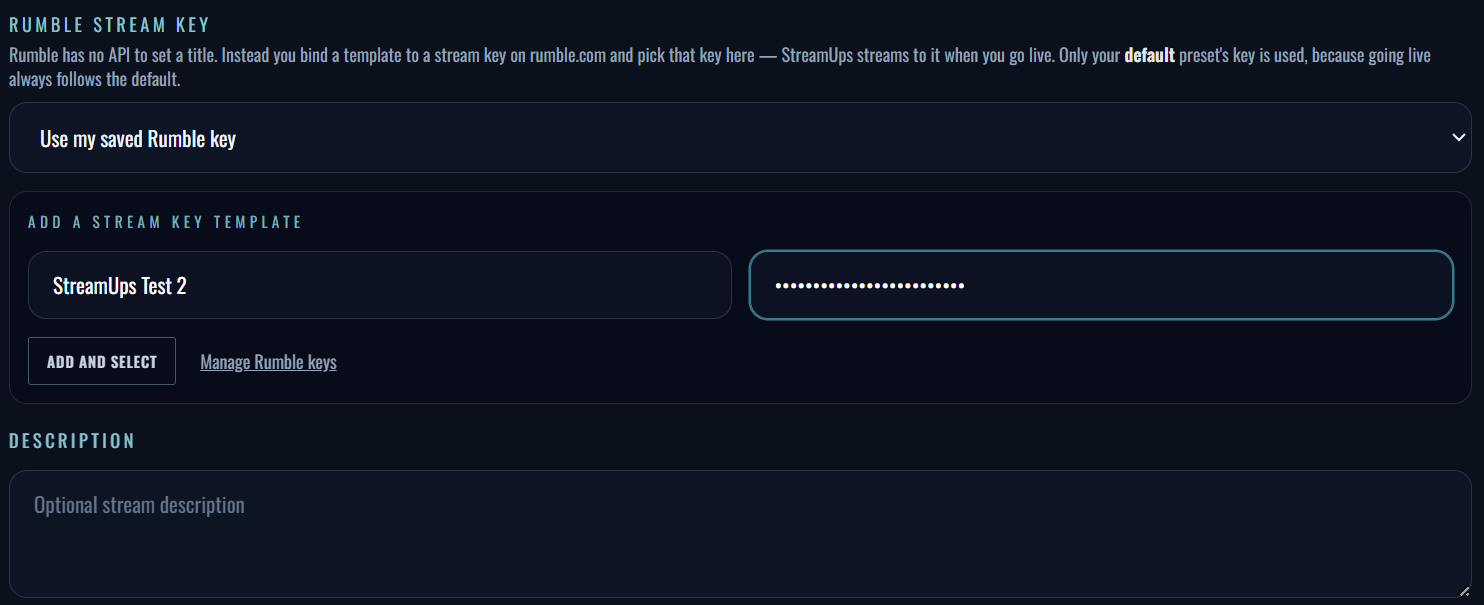
Step 5 — New Rumble keys can be added without leaving Stream Info. - 6
Save, then Apply
Save stores the preset so you can reuse it. Apply is the one that does the work — it pushes the metadata out to every connected platform, so your titles and categories are already correct before you press start in OBS. Do this before you go live rather than after, so the first viewers to arrive see the right title.
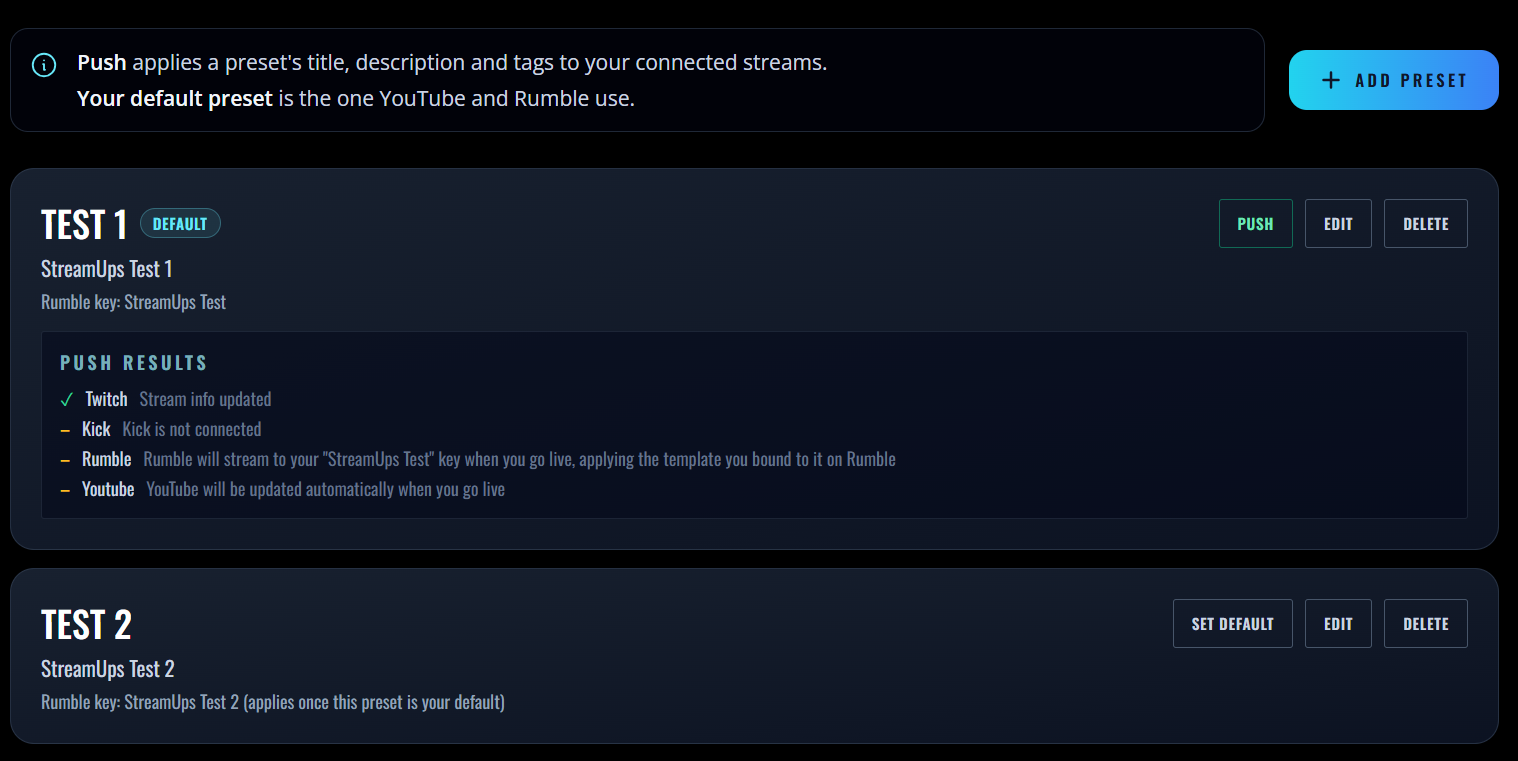
Step 6 — Apply pushes the preset to every connected platform. - 7
Check it applied
Once Apply completes you get a confirmation back showing the preset landed. Worth a glance rather than a blind trust, particularly the first time you run a new preset or the first time you add a destination — it is the difference between going live correctly and finding out from a viewer.
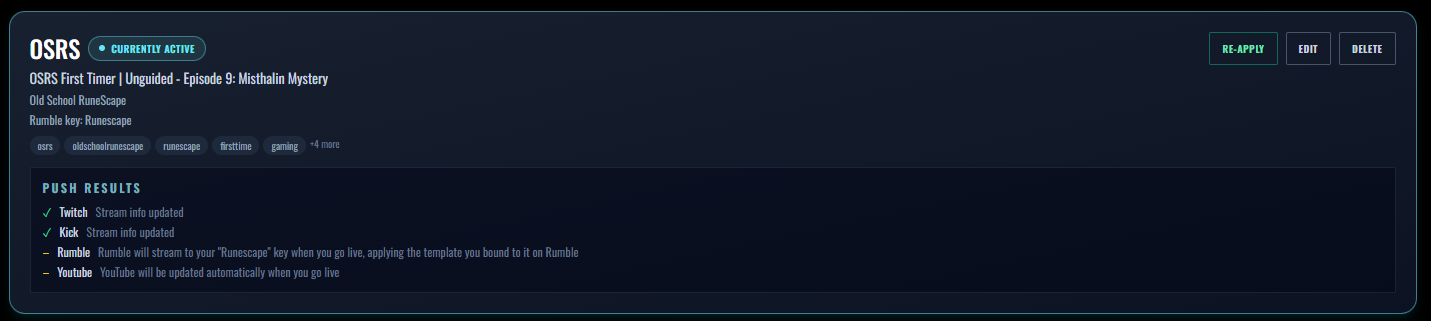
Step 7 — Confirmation that the preset was pushed.
Getting Better Suggestions Out of the AI
The mechanics are two clicks, so the interesting question is what separates a suggestion you accept from one you delete. Mostly it comes down to what you feed it.
Describe the stream the way you would describe it to a friend, not the way you would write a title. "Ranked climb, third night in a row, close to the promo" gives the model something to work with. "Gaming stream" gives it nothing, and you get a title that reads like it was written by someone who has never watched you.
The three fields also want different things from you, and it helps to judge them separately:
- The titleName the thing someone would search for and the reason to click, in that order. The game, then the hook. Titles that lead with the hook read well and get found by nobody.
- The descriptionThis is where the searchable terms live, particularly on YouTube. It is the field most people leave empty and the one with the most room left in it.
- The hashtagsThey carry real weight on YouTube and almost none on Twitch, where discovery runs on category and tags instead. Trim them per platform rather than pasting one block everywhere.
You can also pull in popular streams from a category as a reference point — what is currently working, used as a signal for tone and phrasing. Treat it as a read on the room rather than something to copy; a title that looks like everyone else's is not a discovery advantage.
If you want to see the output quality before connecting any accounts, the free stream title tool runs the same suggestions with no signup — it just stops at the copy button. There is more on why this moves the needle at all in our write-up on AI stream metadata.
Where Rumble Fits
Rumble is the one destination where the preset does not carry the text. It carries the key, the key carries a template, and the template carries the title, description, tags and category. So a preset selects Rumble's metadata by reference rather than by value.
What that means in practice
- Build one Rumble template-and-key pair per stream type and the model works beautifully — swapping presets swaps Rumble along with everything else
- Change a preset's title text and Rumble will not follow. Twitch, Kick and YouTube update; Rumble keeps its template's title until you edit it on Rumble
- If you only ever run one kind of stream, set a default Rumble key once and never think about it again
- Because the metadata is fixed to the key you are broadcasting to, Rumble's title cannot be changed part-way through a stream
None of this is a bug or a limitation StreamUps could remove — it is how Rumble stores live stream metadata, and every third-party tool meets the same wall. The full explanation of the model is in the Rumble multistream tutorial, and the Rumble integration overview covers what else the platform does and does not support.
One Preset Per Stream Type
The pattern that makes this worth setting up: build a preset for each kind of stream you actually run, not for each individual session. Going live then becomes picking one, rather than filling in four forms.
| Preset | YouTube gets | Twitch & Kick category | Rumble key |
|---|---|---|---|
| Just Chatting | A conversational title plus a description naming recurring segments | Just Chatting on both, named slightly differently | Chat key |
| Ranked grind | Game name, rank and a description carrying the searchable terms | The game, from each platform's own list | Ranked key |
| Collab stream | Both names in the title, guests credited in the description | Whatever you are playing together | Collab key |
Twitch and Kick receive the text directly. YouTube receives it when you broadcast through StreamUps, since the integration creates the broadcast. Rumble receives the selected key and takes its metadata from that key's template.
Three presets covers most variety streamers for months. The volatile detail — the episode number, tonight's guest, how close you are to the rank — belongs in the platforms that accept live metadata. Let Rumble carry the durable version and you never have to think about the caveat above.
Stream Info FAQ
Which platforms receive the title and description?
Why isn't my YouTube title updating?
Do I have to use the AI suggestions?
Are stream categories the same across platforms?
Can I change my title mid-stream?
Why didn't my Rumble title change?
How many presets can I have?
Is there a free version I can try without an account?
Do hashtags matter on every platform?
Related Guides & Tools
Ready to Multi-Stream?
Start broadcasting to multiple platforms today. Free tier available with no credit card required.