How to Multistream on Rumble, Kick and Twitch
Two of these take about a minute each. The third takes ten, because Rumble attaches your stream's metadata to the key instead of accepting it live. Here is the template and stream key flow, with screenshots, and why it is worth understanding rather than just clicking through.
Why Rumble Is Set Up Differently
To multistream to Rumble, create a template in Rumble's Live Streaming section with your title, description, tags and category, then create a static stream key and assign that template to it. Paste the key into StreamUps and Rumble appears in your multistream targets alongside Twitch and Kick automatically.
That sentence is the whole tutorial, but it will not make sense until you know why Rumble works this way, so here is the model in three lines.
On Twitch and Kick, the stream key is just an address. Your title and category are set separately, over the platform's API, and they can change while you are live. A tool changes your title by asking Twitch to change it.
On Rumble, the metadata rides with the key. A Rumble template holds a placeholder video, thumbnail, title, description, tags and category. A static stream key gets a template assigned to it. Broadcast to that key and Rumble uses that template's metadata.
So on Rumble you do not change the title — you change which key you use. Once that clicks, everything below is mechanical.
The one caveat worth knowing now
StreamUps does not rewrite the title text on Rumble. It selects which pre-built key and template to broadcast to. So if you change a title in your stream settings, Twitch, Kick and YouTube update immediately — and Rumble keeps showing whatever its assigned template says until you edit that template on Rumble. This is not a bug in anything and it is not a workaround away; it is a consequence of Rumble storing metadata on the key. Build your templates to be durable and it never bites you.
This tutorial is the broadcasting path. If what you actually want is Rumble chat in your overlay, that is a separate setting entirely and it is covered in how to add Rumble chat to OBS. The two are fully independent — you can do either without the other.
Before You Start
A Rumble account with a verified phone number. Rumble will not let you go live, or show you the streaming tools, until this is done. It takes about thirty seconds — the Rumble chat tutorial covers it with a screenshot if you have not hit it yet.
OBS, or anything else that can stream. You will point it at StreamUps once. If you want encoder numbers, the multistream OBS settings reference has them — this page will not repeat them.
A free StreamUps account. No credit card at signup. See plans and the free tier for what each tier includes.
Create Your Free AccountPart One: Build a Rumble Template and Stream Key
Everything in this part happens on Rumble, inside Account Settings. Nothing here touches StreamUps yet.
- 1
Find templates in your Rumble account
Open Account Settings on Rumble and go to the live streaming templates section. This is the same corner of the account that holds the chat API — a different item in the same area, which is why people who set up chat first often walk straight past it.
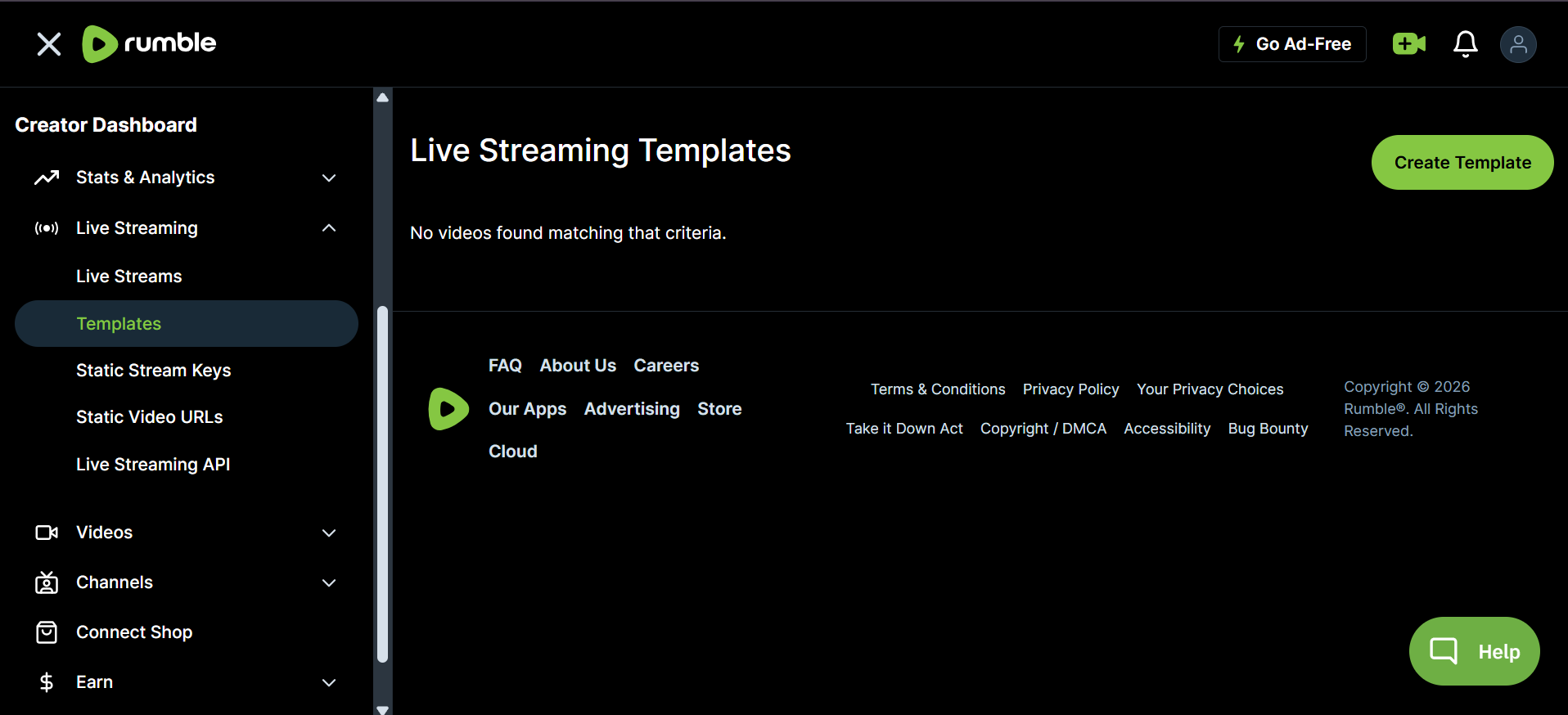
Step 1 — Templates live inside your Rumble account settings. - 2
Create your template
The form has six fields: a placeholder video, a thumbnail, a title, a description, tags and a category. Title and category do the heavy lifting for discovery, so give them real thought. The placeholder video is what sits on your channel before you go live, and leaving it empty wastes the impression you get from anyone arriving early.
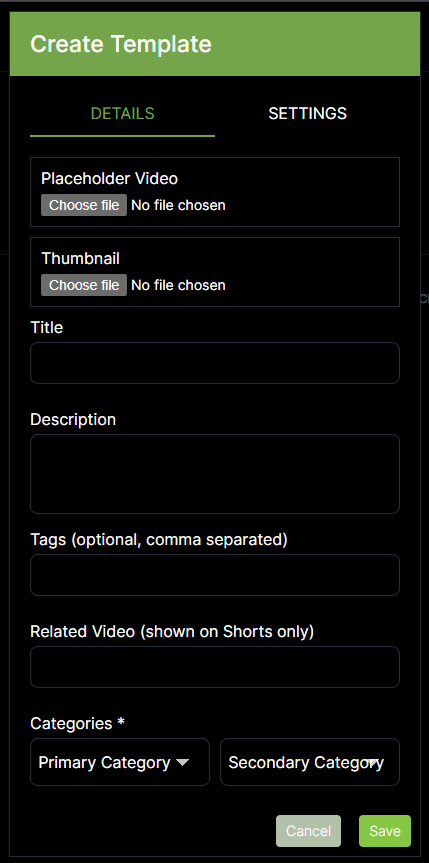
Step 2 — A template holds every piece of metadata your broadcast will carry. - 3
Check the template saved
Your new template appears in the list. You can create as many as you like, and you should — one per kind of stream you run is the pattern that makes this whole model worth the setup. There is more on that further down the page.
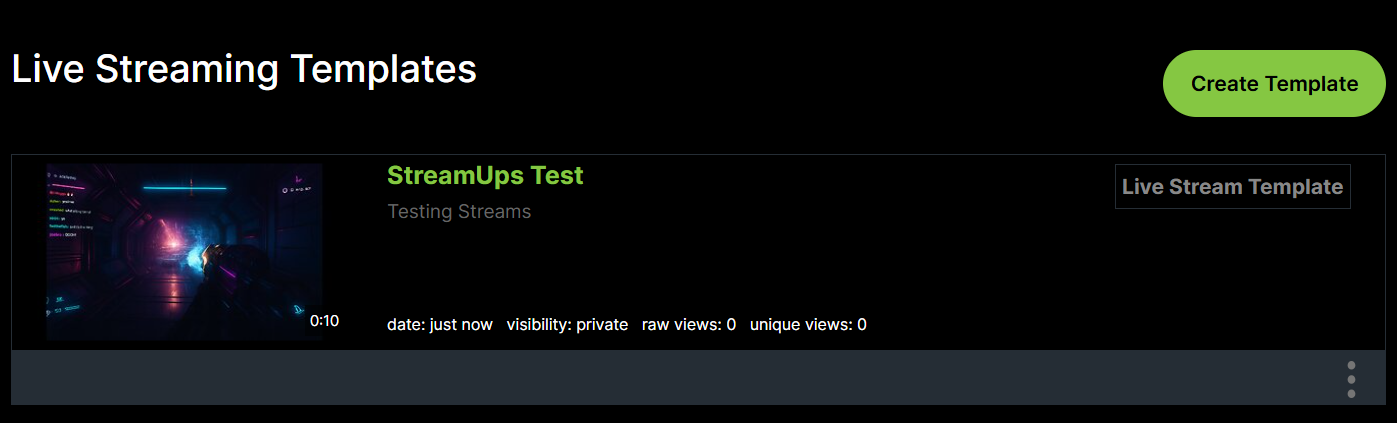
Step 3 — Templates are reusable and you can have as many as you need. - 4
Go to static stream keys
Still in Account Settings, open the static stream keys section. Static means the key does not rotate between broadcasts, which is precisely what makes it usable here — you paste it into StreamUps once and it keeps working for every stream after that.
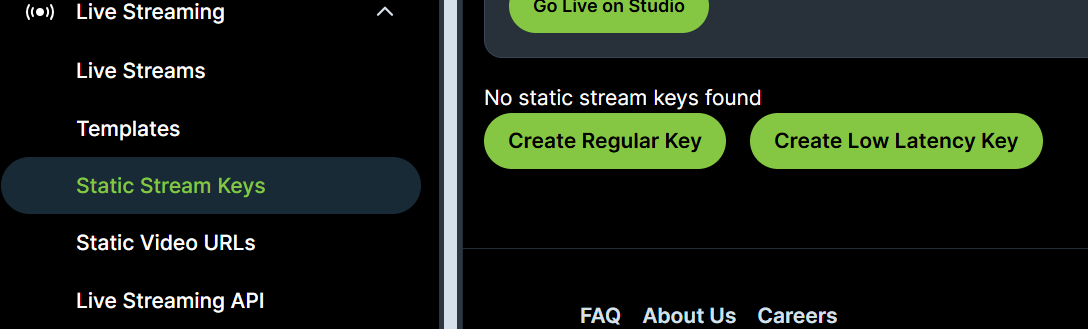
Step 4 — Static stream keys sit alongside templates in your account. - 5
Create a key and copy it
Create a key and copy it. Treat it exactly like a password — anyone holding this can broadcast to your channel as you, and regenerating it is the only way to revoke it. Do not paste it into a Discord thread while asking someone for help.
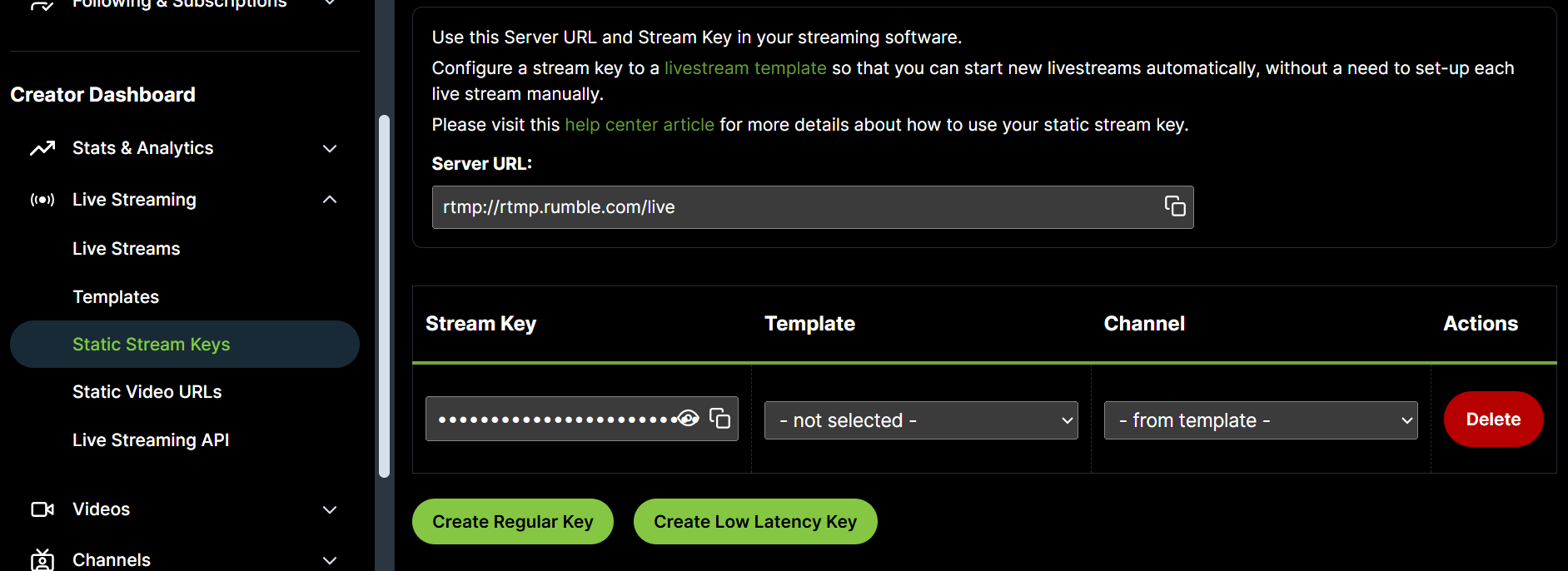
Step 5 — Copy the key, and keep it as private as a password. - 6
Assign your template to the key
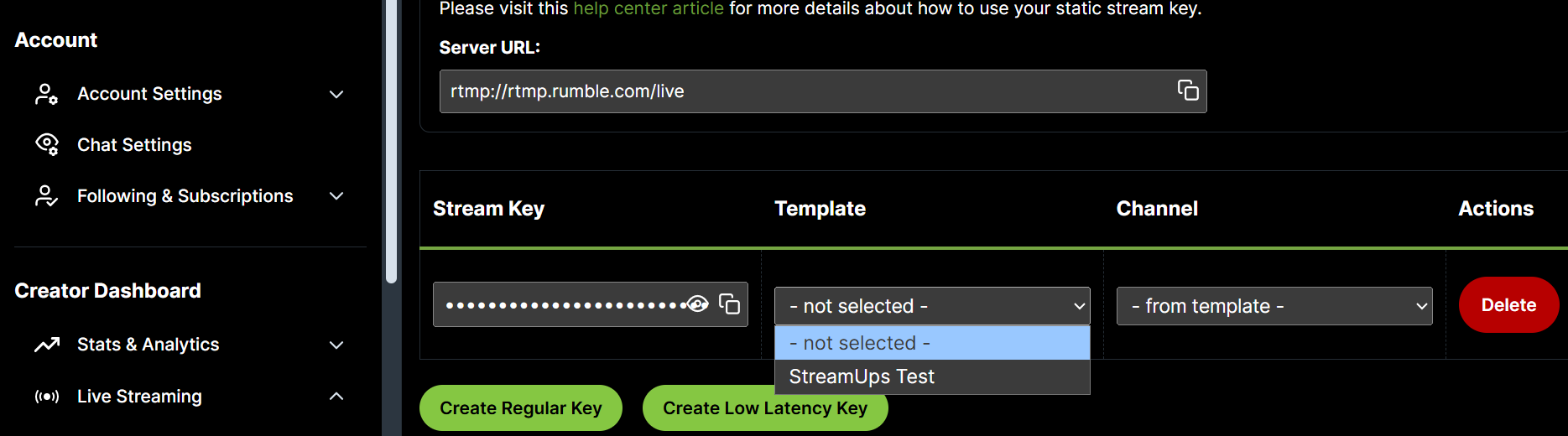
This is the step people miss, and missing it is silent. Use the dropdown beside the key to assign the template you made in step 2. A key with no template assigned has no metadata to supply, so your broadcast goes out without the title, description, tags and category you expected — and nothing warns you. If you only remember one instruction from this page, make it this one.
Step 6 — Assign the template to the key. Skipping this is the most common mistake.
Part Two: Add the Key to StreamUps
Back on our side now. Three steps and Rumble is a live destination.
- 7
Open the Rumble integration page in StreamUps
In StreamUps, open Integrations and choose Rumble. If you have already set up Rumble chat, you will recognise this page — the stream key field sits alongside the API URL field, and the two are independent. Setting one does not require the other.
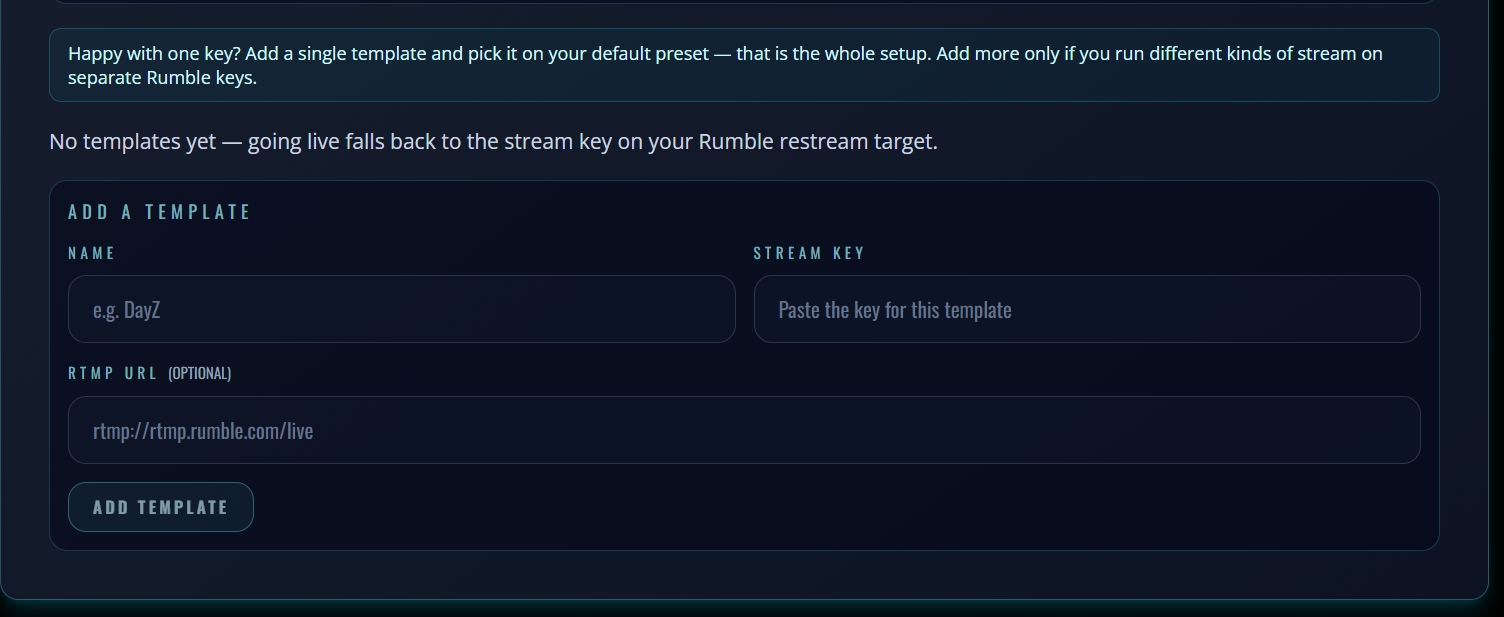
Step 7 — The stream key field on the StreamUps Rumble integration page. - 8
Paste the stream key and save
Paste the key you copied in step 5 and save. That is the entire handshake on our side. There is nothing to install, no RTMP server address to hunt down, and no custom RTMP endpoint to configure — Rumble is a native destination.
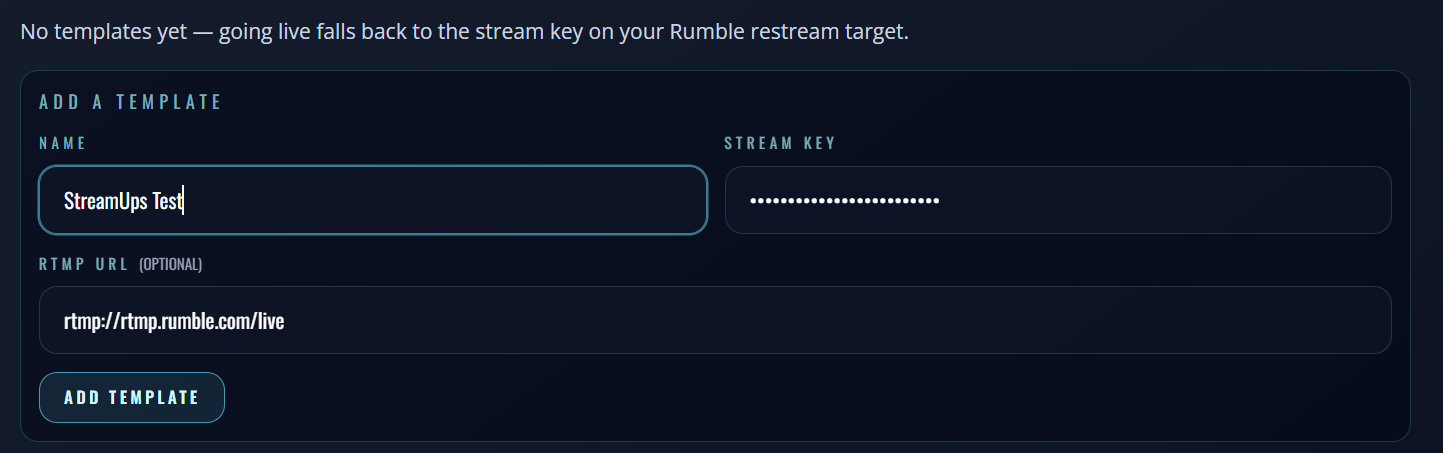
Step 8 — Paste the key and save. - 9
Confirm, and add more keys if you need them
Once saved, the key is listed and an empty field appears beneath it, ready for the next one. That empty box is the visual proof of the whole model — you are not limited to one Rumble destination. Add a key for each template you built and you can pick between them when you go live.
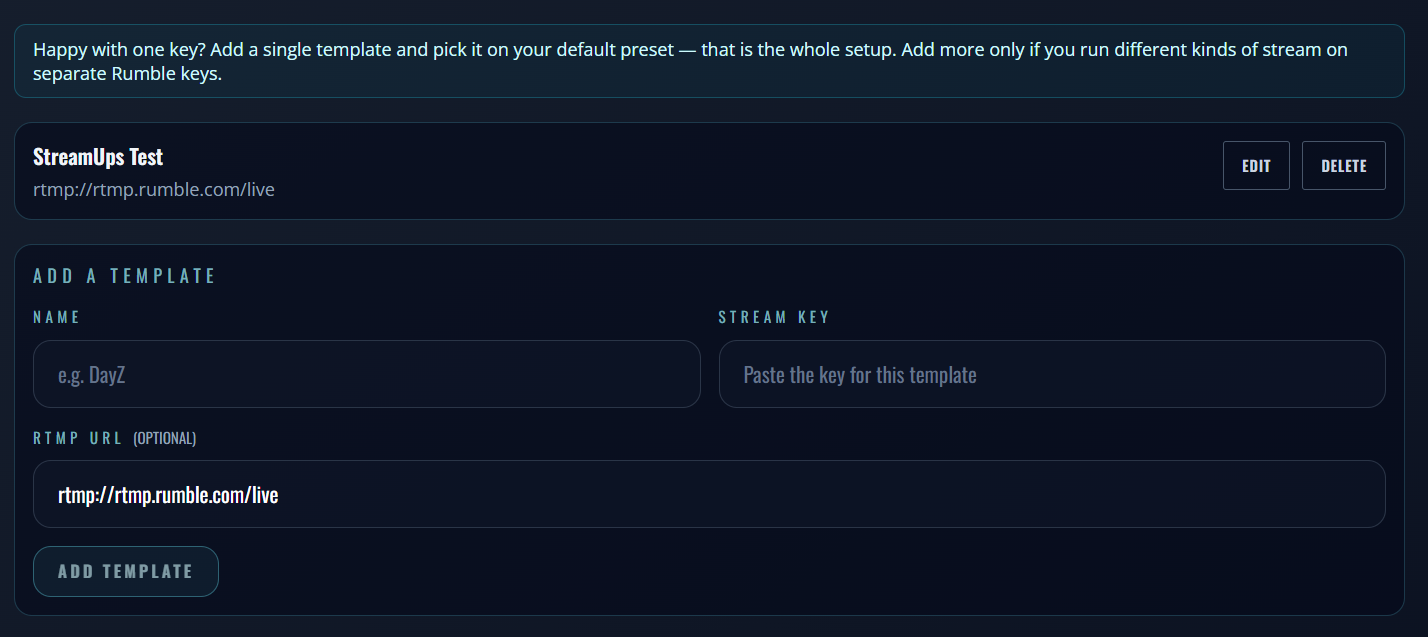
Step 9 — Saved, with room for the next key.
Connecting Twitch and Kick
This is the short section, and it is short honestly rather than for effect. Twitch and Kick are connect-the-account, tick-the-box, done. There is no template, no static key, no assignment step. You authorise them once and they appear in your targets.
Which is worth saying out loud, because it explains why this page is ninety percent Rumble. Rumble is the only destination in the list that asks anything of you beyond a login.
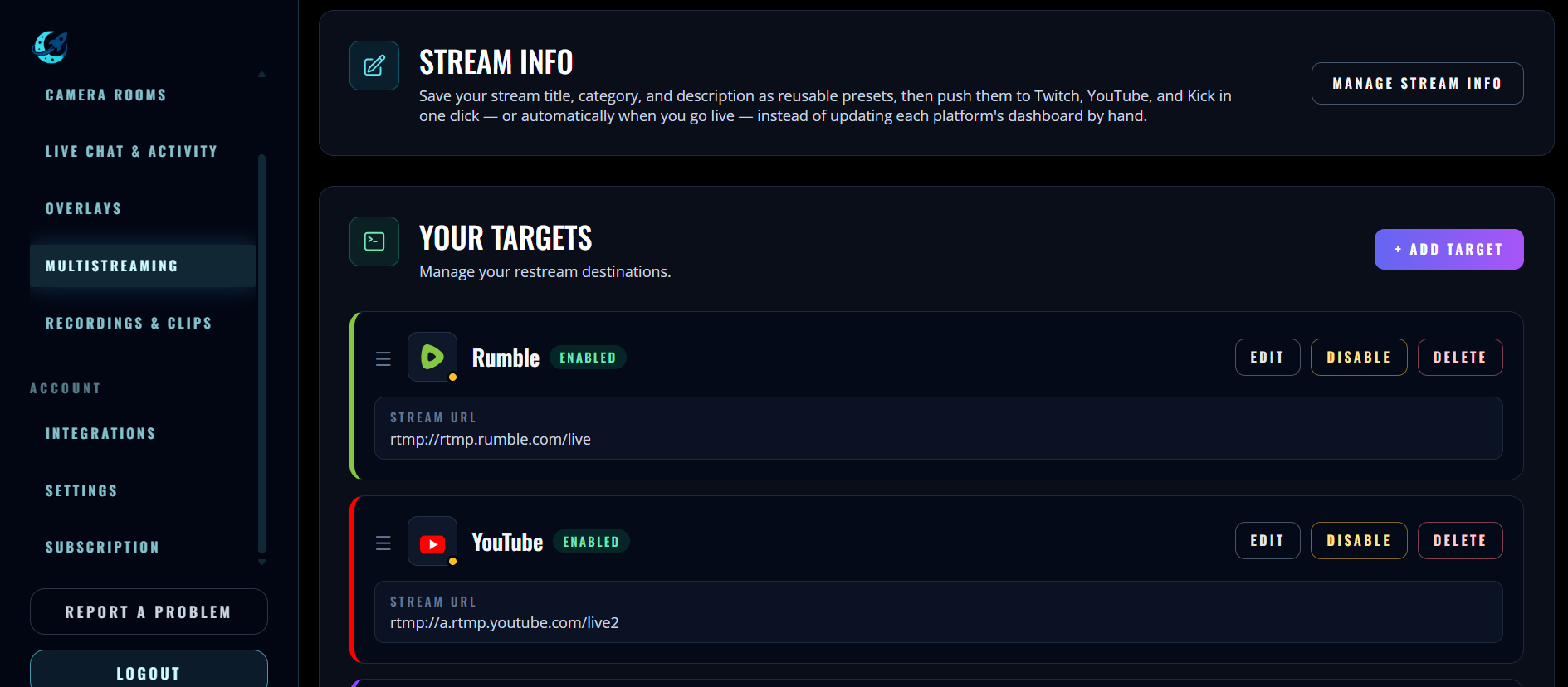
Point OBS at the StreamUps ingest server once under Settings → Stream, and from there you send one encode to us and we fan it out. Your upload carries one stream whether you are live on one platform or five — which is the whole point of multistreaming to every platform from one machine. See every platform StreamUps connects to for the full list.
One Template Per Stream Type
Here is the payoff, and the reason the template model turns out to be a feature rather than a chore. You are not limited to one template or one key. Build a pair for each kind of stream you run, and switching stream type becomes selecting a different key.
| Stream type | What its Rumble template holds | Static key |
|---|---|---|
| Just Chatting | A conversational title, the chatty category, community-leaning tags | Key A |
| Ranked grind | The game name in the title, the game category, competitive tags | Key B |
| Collab stream | A collab title naming the format, guest-facing tags | Key C |
Each Rumble template carries its own title, description, tags and category. The static key assigned to it is what you select when you go live.
A variety streamer with those three pairs never edits a Rumble template again during a normal week. They pick the key that matches tonight's stream, and Rumble's channel page reflects it. The caveat from the top of the page still applies — editing your title elsewhere does not rewrite a Rumble template — but if your template titles are written to survive twenty streams rather than one, that stops mattering.
Next: Push Titles to Every Platform at Once
The keys you just built are selectable from inside StreamUps' stream settings, in the same place you set your Twitch, Kick and YouTube titles and categories — and where AI can write those titles, descriptions and hashtags for you.
That means going live becomes one action instead of four tabs: pick the preset that matches tonight, and every platform updates, Rumble included — the Stream Info walkthrough covers it step by step, and the Stream Info feature page covers what it does. If you want AI to draft the copy first, the free stream title generator runs without an account at all.
Rumble Multistreaming FAQ
Do I need a Rumble template to multistream, or just a stream key?
What is a static stream key on Rumble?
How many Rumble templates and keys can I create?
Do I need custom RTMP to reach Rumble?
Does multistreaming to Rumble use more upload bandwidth?
Why is my Rumble title different from my Twitch title?
Can I multistream to Rumble without setting up Rumble chat?
Is TikTok a multistream destination too?
Related Guides & Tools
Ready to Multi-Stream?
Start broadcasting to multiple platforms today. Free tier available with no credit card required.