How to Add Rumble Chat to OBS With Your Live Streaming API
Rumble hides the setting that lets any outside tool read your chat, and it will not show it to you until you have verified a phone number. Here is where it lives, what to do with it, and how Rumble messages end up in the same overlay as everything else.
What You're Building
To show Rumble chat in OBS, open Account Settings on Rumble, verify a phone number, go to Live Streaming, then Live Streaming API, and create an API URL. Copy it into your StreamUps Rumble integration page. Rumble chat then arrives in the same merged overlay as your other platforms.
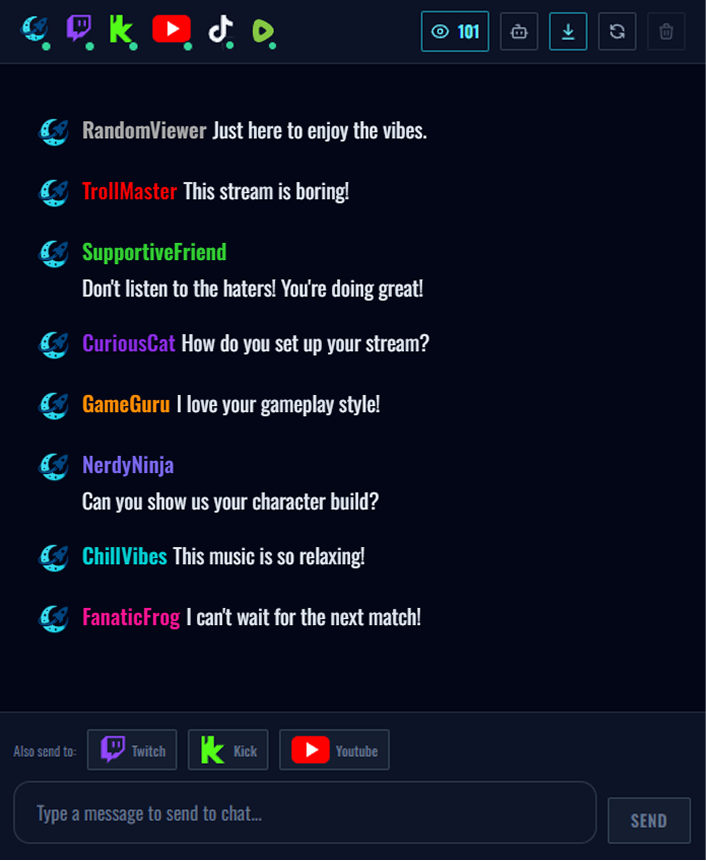
What you end up with is one chronological feed where a Rumble message sits between a Twitch message and a Kick message, each badged with the platform it came from. Not a second browser source. Not Rumble's own chat popout squeezed into a box in the corner of your scene. The same merged chat overlay you already have, with Rumble added to it.
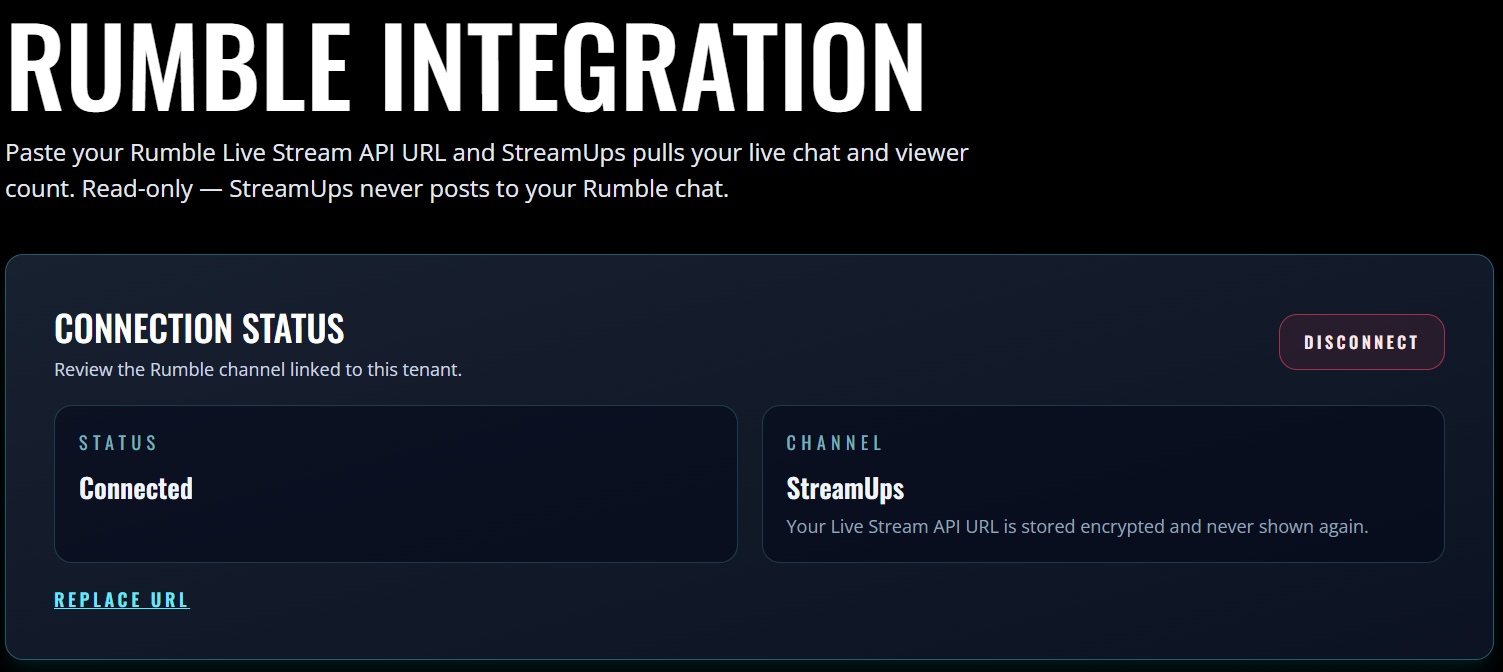
One thing to get straight before you start, because it saves people a lot of hunting: Rumble has two separate settings and they do two different jobs. The Live Streaming API URL lets StreamUps read your chat. A stream key lets StreamUps broadcast to you. This tutorial is the first one. They are fully independent, so you can set up chat today and never touch a stream key, and everything on this page will still work.
Before You Start: The Two Things Rumble Requires
Two prerequisites, and the first one surprises almost everybody.
A Rumble account with a verified phone number. Rumble gates live streaming behind phone verification, and that includes the tools around it. Until you have done it, the Live Streaming section will not give you anything useful and it is easy to conclude the feature simply is not available on your account. It is not a paywall and it is not a tier thing — it is thirty seconds of admin that Rumble makes unavoidable. Do it first rather than discovering it in step four.
A free StreamUps account. No credit card at signup. You need somewhere to paste the URL, and the free tier is enough to read Rumble chat and see whether it earns its place in your scene.
Create Your Free AccountStep-By-Step: Connect Rumble Chat
- 1
Open your Rumble Account Settings
Sign in to Rumble and open Account Settings from the top right of the homepage. Everything in this tutorial lives inside there — Rumble does not surface any of it from the streaming interface itself, which is the main reason people never find it.
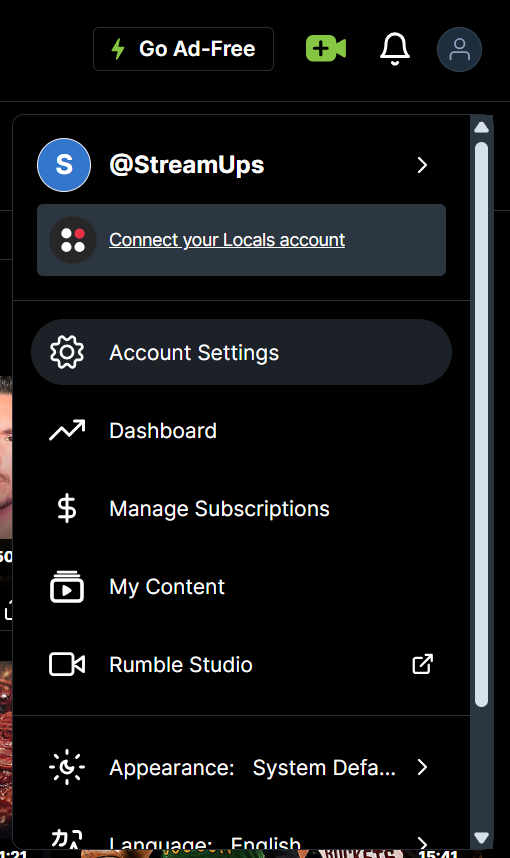
Step 1 — Account Settings sits in the top right of the Rumble homepage. - 2
Verify your phone number
Rumble will not let you go live, or hand out a Live Streaming API URL, until your account has a verified phone number. There is no way around it from the StreamUps side. If you have already done this at some point, skip ahead — if you have not, it takes about thirty seconds and it only has to happen once.
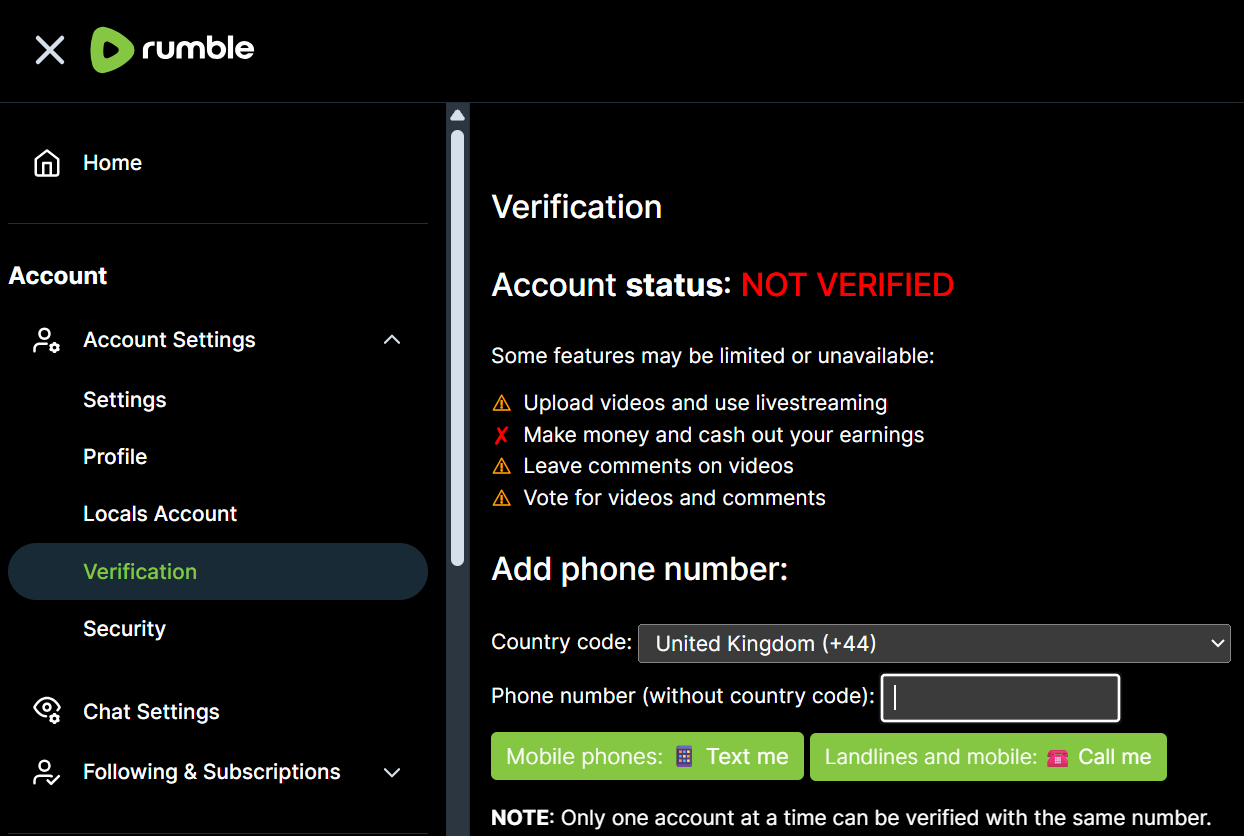
Step 2 — Verify a phone number before anything else will work. - 3
Open the Live Streaming menu
Inside Account Settings, open the Live Streaming dropdown. This is the fork in the road: one item here gives you the API URL that reads your chat, and another gives you the stream keys used for broadcasting. You want the API one.
Learn more about broadcasting to Rumble as well.
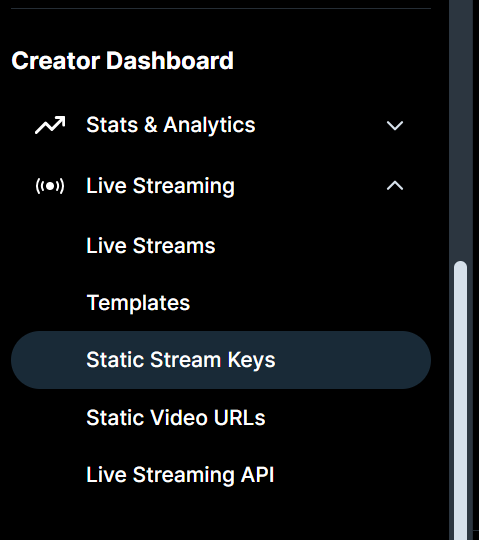
Step 3 — The Live Streaming menu holds both the chat API and the stream keys. - 4
Go to Live Streaming API and create one
Open the Live Streaming API section and press the button to create an API URL. Do not let the name put you off — this is not a developer credential and you do not need to understand anything about APIs to use it. It is a read-only address that lets an authorised tool see your channel's live chat, and you will only ever copy and paste it.
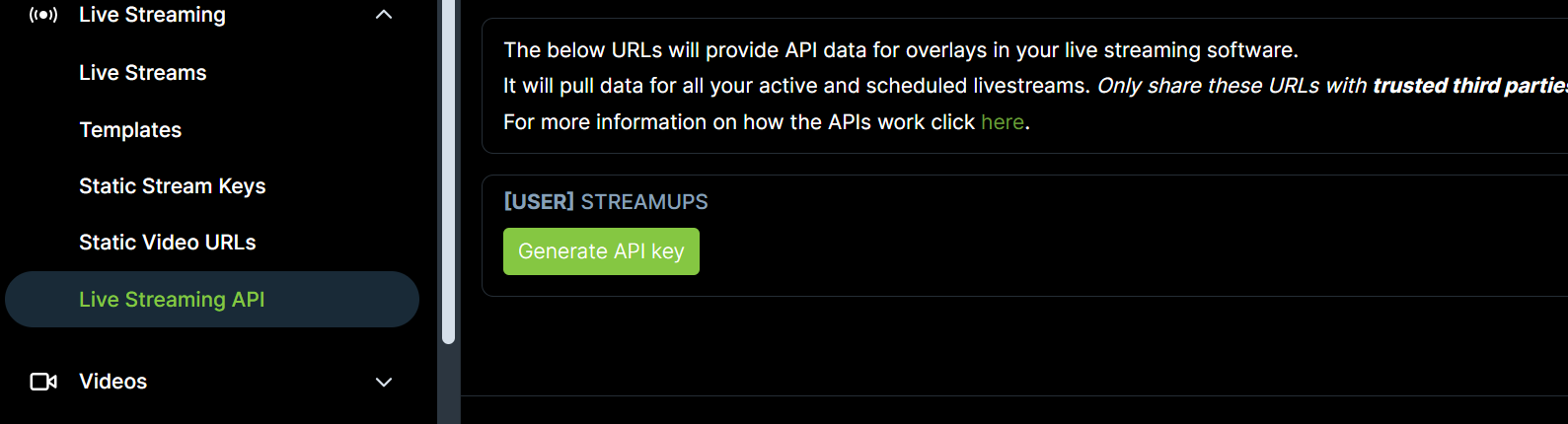
Step 4 — Create an API URL from the Live Streaming API section. - 5
Copy the API URL
Copy the URL Rumble generates. Treat it like a password: anyone holding it can read your chat, so do not paste it into a Discord thread while asking for help. If it ever leaks, regenerating it from this same screen is how you revoke it.

Step 5 — Copy the URL, and treat it like a password. - 6
Paste it into StreamUps
In StreamUps, open Integrations and choose Rumble. Paste the URL into the API field and save. This is the only step that happens on our side, and it is the whole handshake — there is nothing to install and no OAuth window to sign through.
Learn more about every platform StreamUps connects to.
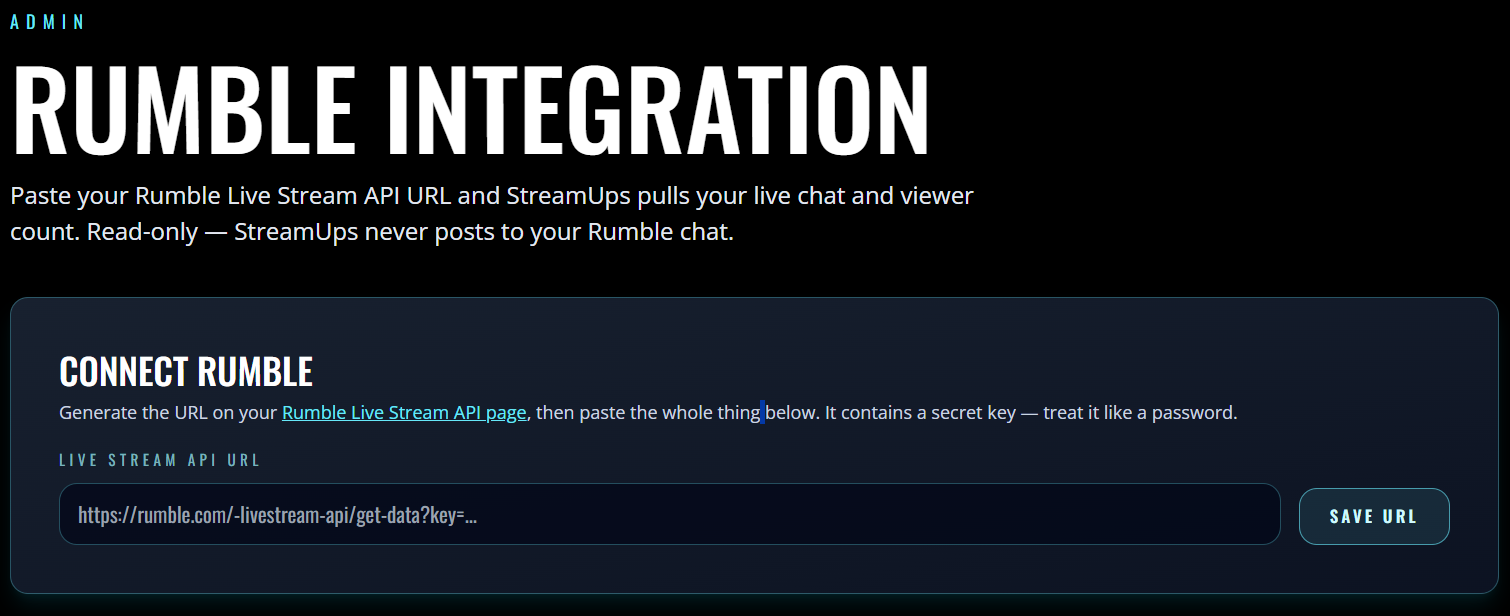
Step 6 — Paste the URL into the StreamUps Rumble integration page and save. - 7
Confirm the connection
Once saved, the page reads your Rumble channel name back to you. That is your confirmation that the URL is valid and pointed at the right account. If the name that appears is not yours, the URL came from a different Rumble account — regenerate it from the correct one and paste it again.
Step 7 — Your channel name appearing means Rumble chat is connected.
What Rumble Chat Can and Cannot Do
Rumble support in StreamUps is deliberately narrower than Twitch or Kick support, and it is better to know that now than halfway through a stream.
What works
- Rumble messages interleave with every other platform in one chronological feed
- Every line carries a Rumble badge, so you know who you are talking to before you say their name
- Rumble chat appears in the OBS admin dock for reading and triage
- Fonts, colours, density and fade timing apply to Rumble messages like any other source
- It works whether or not you broadcast to Rumble through StreamUps
What does not
- No bot replies — StreamUps reads Rumble chat but cannot post into it
- No !commands — a Rumble viewer typing a trigger gets no response
- No timers, auto-greetings or AI responses reaching Rumble
- Typing in the admin dock sends to the platforms that accept it, not to Rumble
- No second overlay is created, but no second chance to reply is either
None of that is a workaround away. It is a limit of what Rumble exposes to third-party tools, not a paywall and not a roadmap item being held back. If Rumble ever opens up a way to post into live chat, this page changes with it.
Here is the part worth sitting with, though, because it flips the whole thing round. On Twitch, Kick and YouTube a bot covers for you — a chat command answers a question while you are mid-sentence, a timer plugs your Discord, a greeting fires for a first-time chatter. On Rumble, nothing covers for you. If you do not personally see a Rumble viewer's message, that viewer gets nothing at all. Which means putting Rumble chat in your eyeline is not a convenience on this platform the way it is on the others — it is the only mechanism those viewers have of being acknowledged.
Adding the Overlay to OBS
This tutorial stops at the connection, because the OBS half is already covered properly elsewhere. The short version: your overlay is a browser source URL, and your moderation panel is a custom browser dock that lives inside OBS itself.
Both are walked through click by click, with screenshots, in the guide to merging Twitch, YouTube, Kick and TikTok chat. If you already have that overlay running, you do not need to do anything at all — Rumble joins the feed you have, using the URL you have already pasted.
If You Also Want to Broadcast to Rumble
The API URL reads chat. It does not send video. Broadcasting to Rumble needs the other half of that Live Streaming menu — a static stream key, with a template assigned to it that carries your title, description, tags and category.
That model is genuinely different from how Twitch and Kick work, and it is worth reading before you dive in. Rumble is a native destination in StreamUps, so no custom RTMP is involved either way — see how to multistream on Rumble, Kick and Twitch for the broadcasting side, or multistreaming to every platform for how one encode reaches all of them at once.
Rumble Chat in OBS FAQ
Do I need to verify my phone number to stream on Rumble?
What is the Rumble Live Streaming API URL?
Can I read Rumble chat without multistreaming through StreamUps?
Can I reply to Rumble viewers from the OBS dock?
Do chat commands work on Rumble?
Does adding Rumble mean a second browser source in OBS?
Why not just point a browser source at Rumble's chat popout?
What happens if I regenerate my Rumble API URL?
Related Guides & Tools
Simplify Your Multi-Platform Streaming
Manage chat from Twitch, Kick, and soon YouTube in one unified control panel. StreamUps gives you the tools to focus on content, not platform juggling.