THE COLLAB CHAT PLAYBOOK
How to Combine Chats on a Co-Stream
To combine chats on a co-stream, invite your partner through StreamUps Collab Chat, have them approve the request, then both activate the Link icon in your admin chat panels. You can read each other's connected chats in StreamUps and show the shared conversation on both chat overlays.
Let's link your chats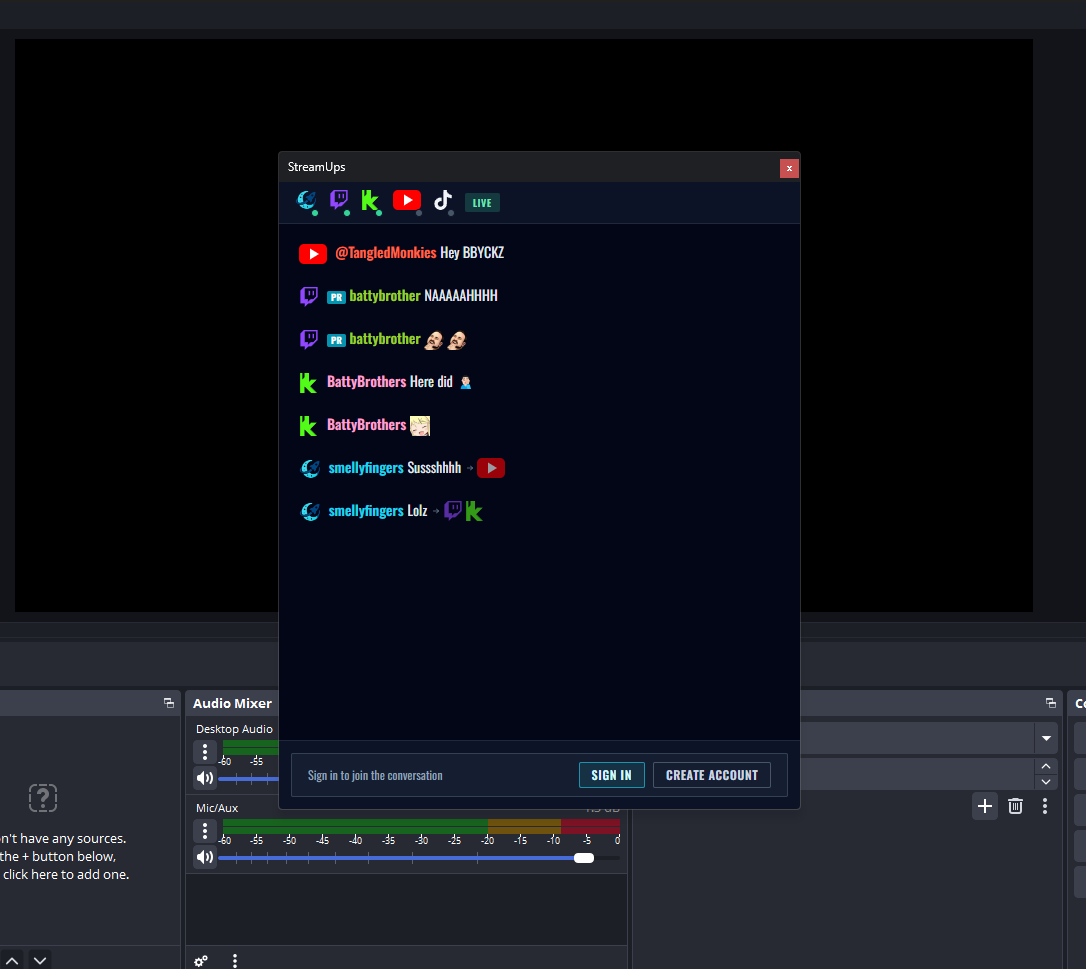
Keep your connected chats together in your admin panel.

Before you start: connect your own chats
Both streamers need a StreamUps account, their own chat sources connected, and access to their admin chat panel. Use the email address attached to your partner's StreamUps account. If you have not set up your panel or overlay yet, follow our merged chat and OBS setup tutorial first.
Merging your own platform chats puts your channels in one feed. Collab Chat adds your partner's connected feed to that experience. For example, you can follow reactions from your Twitch viewers alongside your partner's connected YouTube chat while you play together. The shared view described here is in StreamUps panels and overlays.
For Twitch's own shared chat feature, see Twitch's Shared Chat guide (new tab). The steps below explain how to link two StreamUps accounts, including their merged platform chats.
INVITE. APPROVE. ACTIVATE.
Two streams. One shared chat.
12 steps, every click covered.
Follow along with your collab partner.
- 01
Log in and open Live Chat
Sign in to your StreamUps account and choose Live Chat in the sidebar. Your partner needs their own StreamUps account with their chat sources connected too.
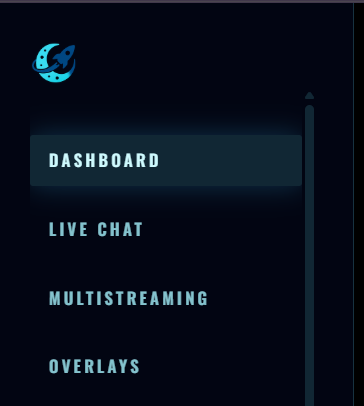
Step 1: Log in and open Live Chat. - 02
Open Chat Settings
On the Live Chat & Activity page, select Chat Settings. This is where you manage the connection with your collab partner.
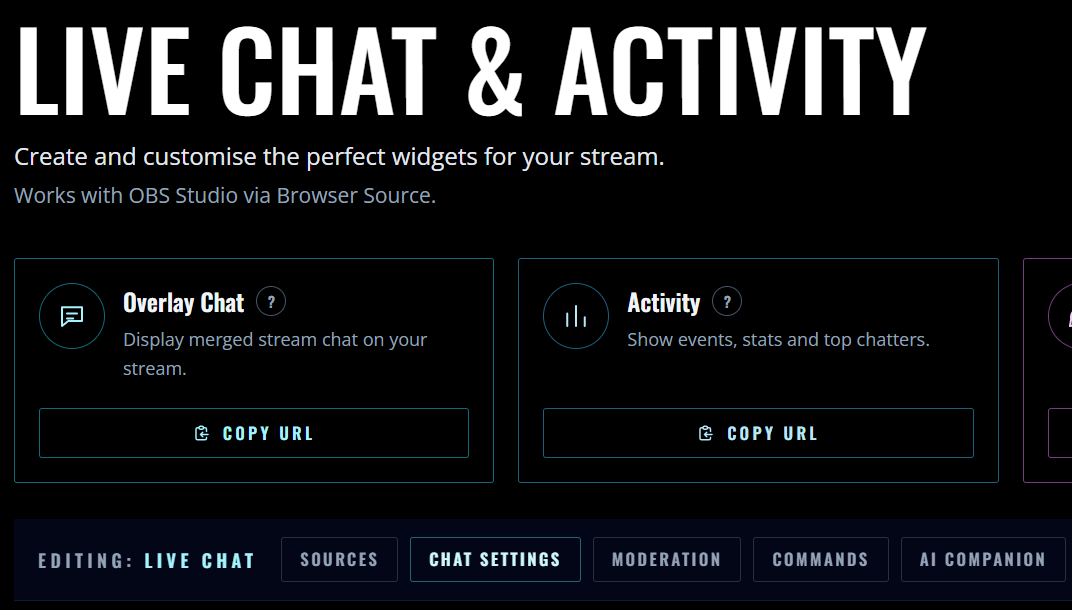
Step 2: Open Chat Settings. - 03
Send your partner a Collab Chat request
Find Collab Chat, enter the email address your partner uses for StreamUps, then select Send Request. Check the address with your partner before sending.
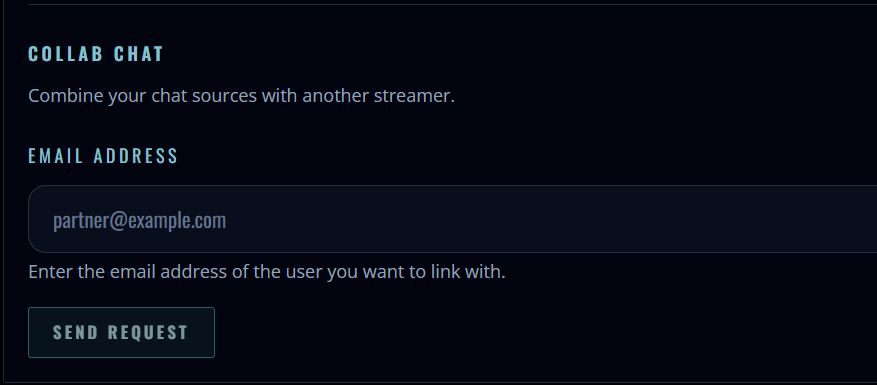
Step 3: Send your partner a Collab Chat request. - 04
Check the waiting request
Your invitation appears under Sent while it is waiting for a response. Your partner has seven days to accept it. Check the expiry date shown on the request; if it expires, send a new invitation.
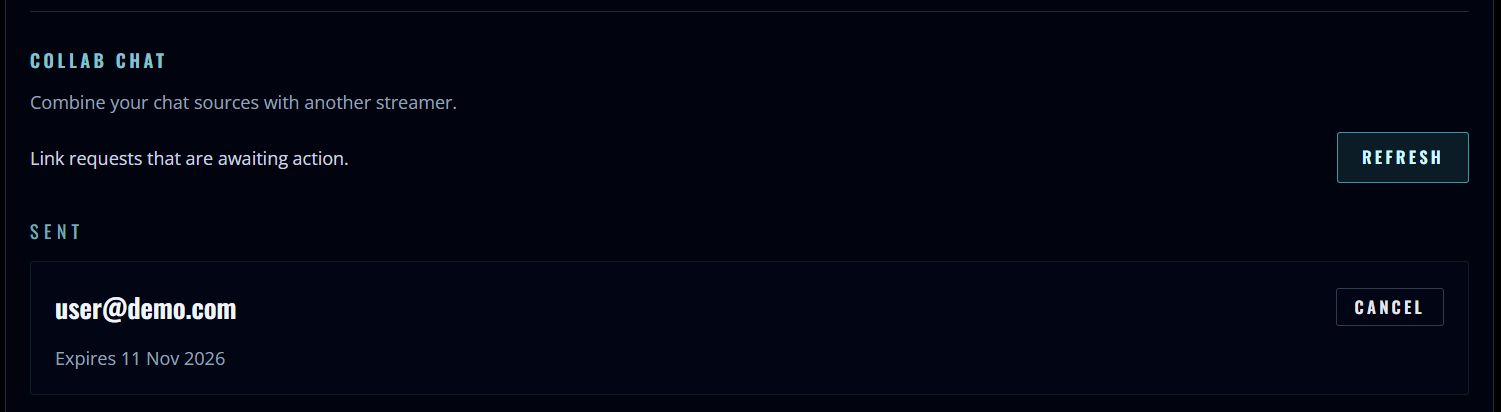
Step 4: Check the waiting request. - 05
Your partner receives an invite email
Ask your partner to look for the Link Chats Request email. It tells them who wants to share chat with them. The invitation still needs their approval before you can activate a session together.
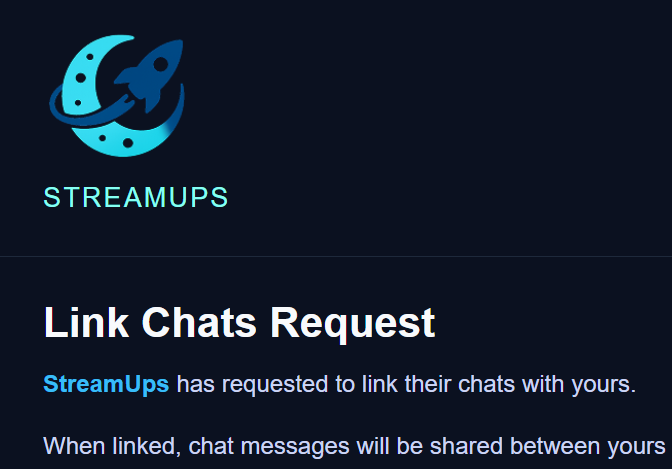
Step 5: Your partner receives an invite email. - 06
Your partner approves the request
Your partner opens Live Chat, selects Chat Settings and finds the invitation under Collab Chat. They can select Approve to accept or Reject to decline. If the request is not visible yet, use Refresh and check you invited the right account.
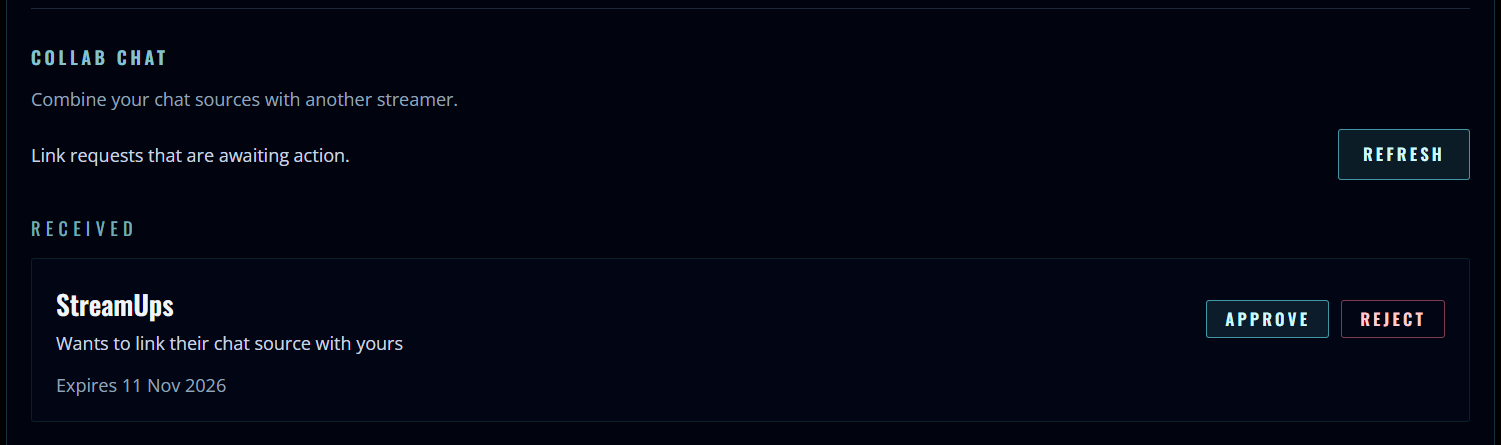
Step 6: Your partner approves the request. - 07
Check your approved partner
Once approved, the connection appears in the same Collab Chat section. The Linked badge confirms the partner connection exists. You still need to activate chat sharing in your admin panel when you are ready to stream together.
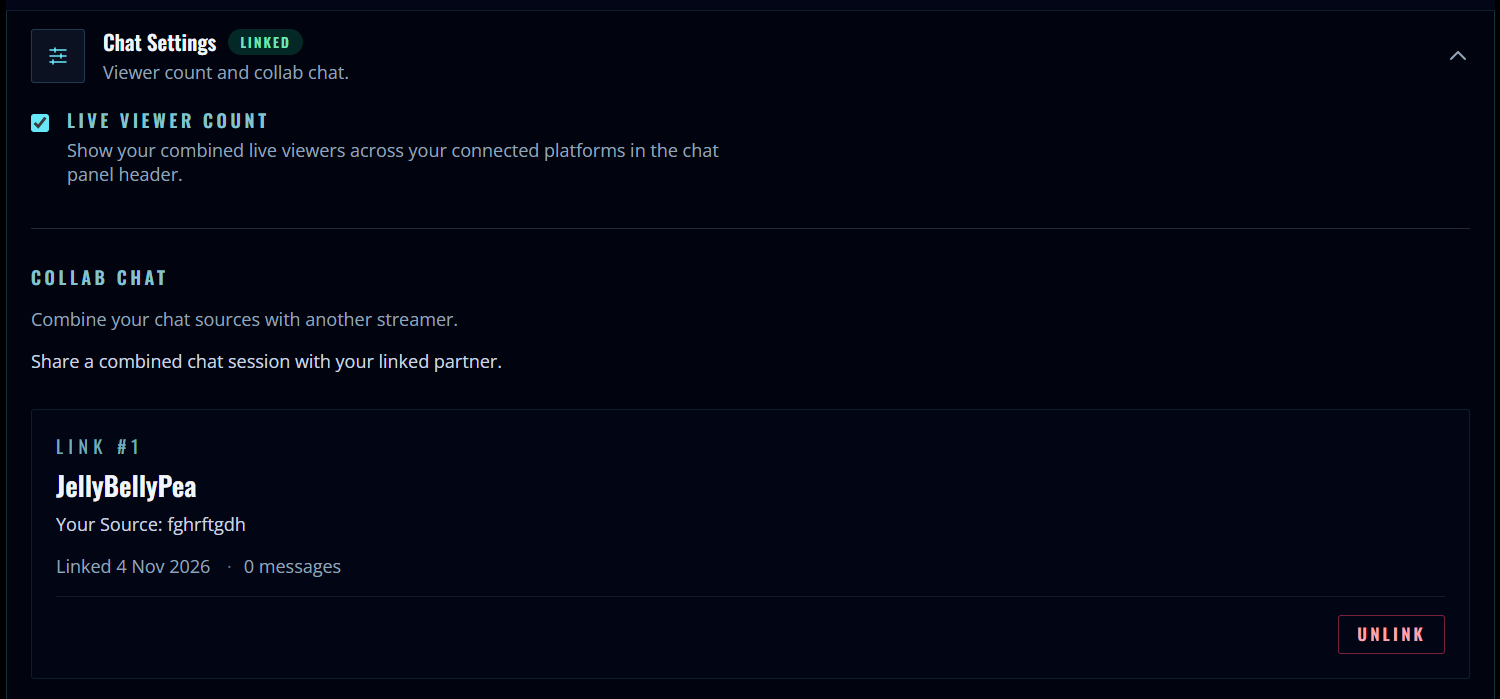
Step 7: Check your approved partner. - 08
Look for the approval email
You also receive a Link Chats Request Approved email confirming your partner accepted. Approval completes the invitation stage; it does not replace the activation step for each collab stream.
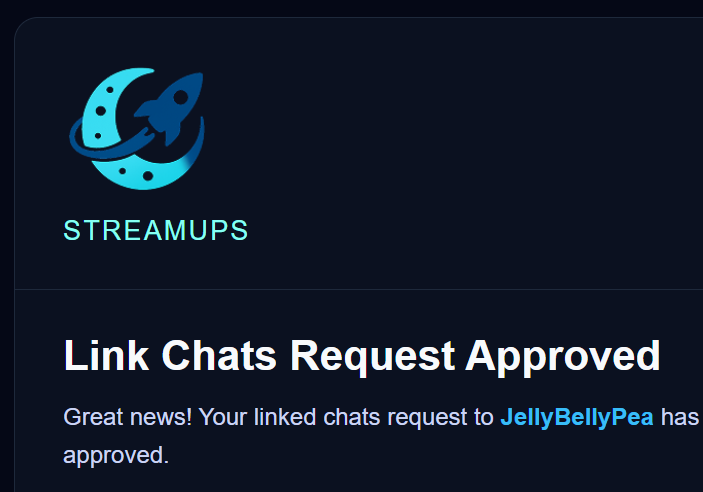
Step 8: Look for the approval email. - 09
Activate Collab Chat in your admin panel
When you are both ready to share chat, open your StreamUps admin chat panel and click the chain-shaped Link icon to confirm activation. Your partner must do the same in their own admin panel.

Step 9: Activate Collab Chat in your admin panel. - 10
Yellow means your partner has not activated yet
If your partner has not activated their side, your Link icon is yellow. Ask them to open their own admin chat panel and activate the link. An approved invitation alone is not enough to start the shared session.

Step 10: Yellow means your partner has not activated yet. - 11
Green means both sides are active
The Link icon turns green when your partner has activated too. You are now ready to receive linked chat messages. Check the icon before you start responding to both communities.

Step 11: Green means both sides are active. - 12
Check a message and its source stamp
Have a viewer send a fresh chat message, then check that it appears in the linked panel. Messages from your partner carry a source stamp so you can tell which streamer they came through. If you use StreamUps chat overlays, their messages also appear on yours and your messages appear on theirs.
Step 12: Check a message and its source stamp.
Your checklist for every collab stream
Next time you stream together, check that your approved partner is still listed in Live Chat → Chat Settings → Collab Chat. Then complete the session activation again:
- Both open your admin chat panels and activate the Link icon.
- If the icon is yellow, ask your partner to activate their side.
- Confirm the icon is green and check a fresh message for its source stamp.
- If you use chat overlays, check the shared messages appear on both streams.
The same sharing works with your existing StreamUps chat overlay: your partner's chats appear on yours, and yours appear on theirs. See the merged chat overlay guide for the overlay setup.
Co-stream chat troubleshooting & FAQ
Can we combine chats if we stream on different platforms?
Yes. Collab Chat shares your connected StreamUps chat feeds with your partner. If you already merge Twitch, YouTube, Kick or TikTok chats in StreamUps, those connected chats can be part of the shared feed. Both streamers need their own chat sources set up first.
Why is the Link icon yellow?
Yellow means your partner has not activated their side yet. Ask them to open their admin chat panel and click the Link icon. Check the session indicator turns green once both sides are active.
We approved the invite. Why are chats still separate?
Approval establishes your partner connection. Both streamers must also activate the Link icon in their own admin chat panels for the current collab session. Check that both are active, then check a fresh incoming message.
How long does a Collab Chat invitation last?
A pending invitation expires after seven days if it is not accepted. Your partner can find it in Live Chat → Chat Settings → Collab Chat and choose Approve or Reject. If it has expired, send a new request.
Do I need to activate Collab Chat for every stream?
Yes, every time you want to collab. Both streamers activate their side for each shared session. This prevents chats from crossing over when you start a fresh stream on your own.
Will my partner's chat appear on my overlay?
Yes. During an active collab session, their chats appear on your StreamUps chat overlay if you use one, and yours appear on theirs. Check the overlay is loaded in your streaming scene and test with a fresh message.
How do I tell which streamer a linked message came from?
Incoming linked messages carry a source stamp in the admin panel. The example in step 12 shows a Linked · StreamUps stamp beside the message, identifying the partner feed it came through.
More chat tools and setup guides
Ready to Level Up Your Overlays?
Camera overlays, live chat, AI chat, custom chat, and collab chat—all as browser sources for OBS. Start free today.